
The Quiet Breakdown We Rarely Notice
A few years ago, I completely fried a thousand-dollar laptop right in the middle of a massive project, and I loudly blamed the brand for selling me a cheap machine. But when the repair guy showed me the melted plastic and choked fans, I realized my own bad habits were the actual killers. I felt so embarrassed, but that expensive mistake forced me to figure out how to stop destroying my gear, and I want to share exactly what I learned with you.
Imagine sitting down with your morning coffee, feeling fully prepared to tackle a busy day of work. You open your laptop lid, press the power button, and wait. But instead of your familiar desktop screen, you are greeted by a completely black display and the aggressive, loud whirring of your cooling fan.
Panic immediately sets in. You think about the unsaved documents, the important files, and the heavy financial cost of replacing a motherboard.
We completely rely on our laptops for almost everything we do today. Yet, when these expensive machines suddenly break down, slow to a crawl, or refuse to hold a charge, we instantly blame the manufacturer.
We complain that modern electronics are just not built to last anymore. But what if I told you the real problem is much closer to home?
The honest truth is that our innocent, everyday routines are often doing the most damage. We treat our delicate tech devices like indestructible tools.
We carry them poorly, charge them incorrectly, and place them in environments that slowly cook their internal components. This creates a hidden cycle of physical and internal stress that we never notice until the screen goes completely dark.
I want to help you break this expensive cycle today. By making just a few tiny adjustments to how you handle your device, you can easily save yourself hundreds of dollars and years of frustration.
Let me show you exactly what is going wrong behind the scenes and how we can stop it immediately.
The Innocent Daily Habits Slowly Destroying Your Hardware
Taking care of your computer requires a lot more than simply running antivirus software once a month. The physical ways we interact with our devices play a massive role in how long they will actually survive.
Below, I am going to break down the most common daily errors you are likely making right now. I will also share the simple, science-backed solutions you can start using immediately.
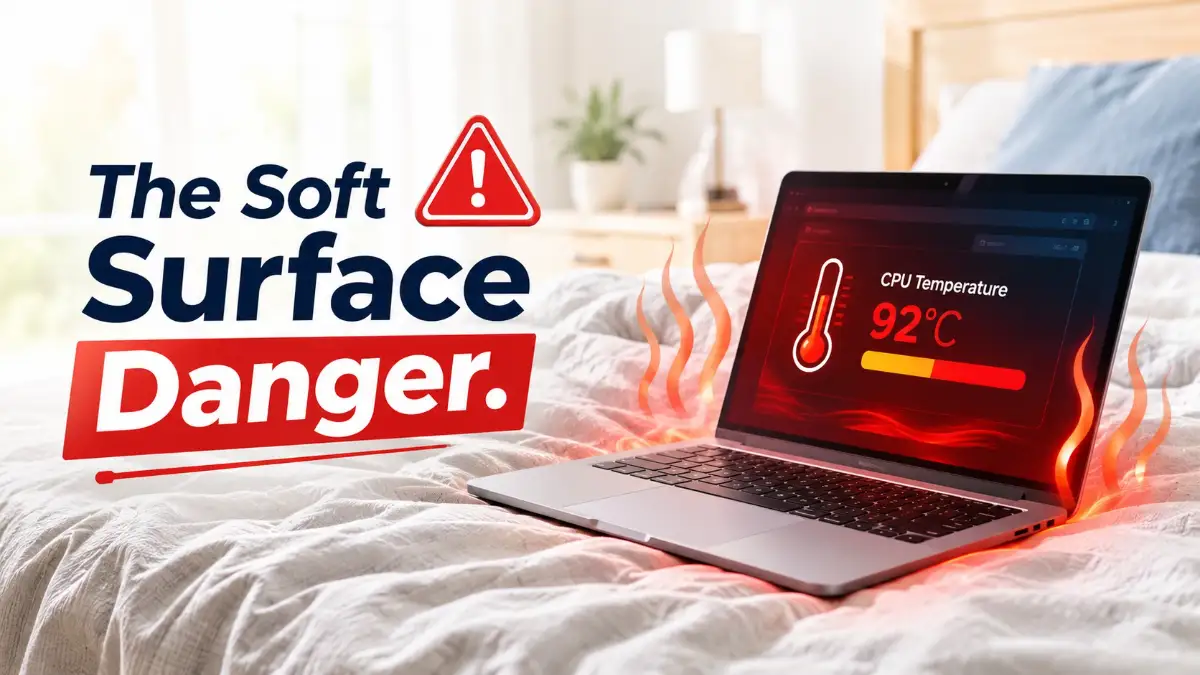
The Soft Surface Trap (Why Your Bed is an Enemy)
This is easily the most common mistake almost all of us make. You get home after a long, exhausting day and decide to watch a movie or answer some emails from the comfort of your bed.
You place the laptop directly on your blanket, a plush pillow, or even directly on your lap. It feels perfectly comfortable for you, but it is an absolute nightmare for your machine.
Laptops generate a massive amount of heat when the processor is actively working. To manage this heat, manufacturers design specific intake and exhaust vents, usually located on the very bottom or the sides of the chassis.
When you rest the device on a soft, uneven surface like a mattress or a thick blanket, the fabric instantly blocks these critical vents. It is exactly like trying to run a marathon while breathing through a tiny plastic straw.
I used to edit all my videos while lying in bed with my laptop resting directly on my favorite fluffy blanket. I stopped doing this the hard way after my battery actually started expanding from all that trapped heat. Now, I keep a cheap wooden lap desk right next to my bed, which keeps my laptop running cool and saves me from another costly repair.
The Science Behind the Damage
Because the hot air has absolutely nowhere to escape, it begins baking the internal components. The internal fans will spin faster and louder to compensate, which drains your battery rapidly.
Over time, this intense, trapped heat dries out the thermal paste that keeps your processor cool. It can even warp the thin plastic parts inside your machine.
Pro Tip: The Hard Surface Rule
If you really love working from your bed or the couch, you do not have to stop completely. Instead, simply invest in a cheap wooden lap desk or a hard cooling pad.
Always ensure there is a clear, hard, and flat surface directly beneath your machine to allow fresh air to flow freely.
Extreme Battery Stress (The 100% and 0% Myth)
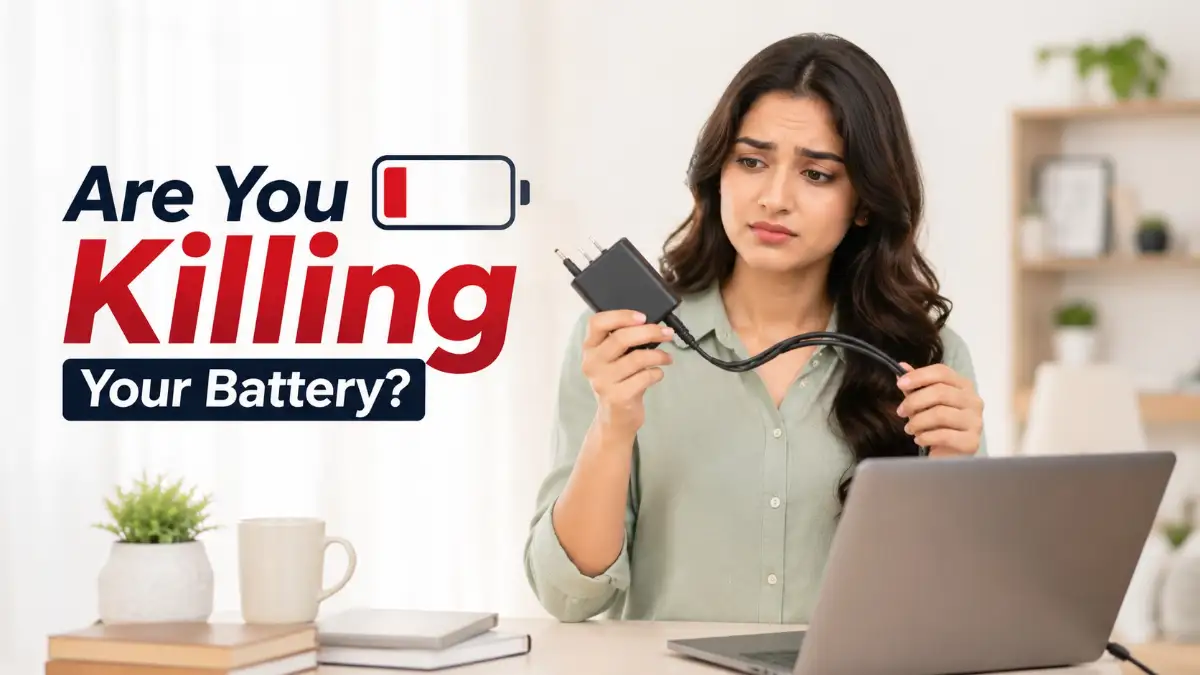
There is a huge amount of confusion regarding how we should actually charge our devices. Many people plug their laptops into the wall the moment they buy them and leave them connected 24 hours a day.
Others believe you have to drain the battery all the way down to zero before plugging it back in. Both of these extreme habits are actively destroying your battery chemistry.
Modern computers use lithium-ion batteries, which operate through complex chemical reactions. These specific batteries absolutely hate being held at extreme limits.
Keeping your machine at a constant 100% charge puts a high amount of voltage stress on the internal battery cells. On the flip side, letting it die completely causes the chemical materials to degrade much faster.
For a deeper understanding of how this chemical stress works, you can review the extensive research on lithium-ion degradation published by Battery University, which explains exactly how high voltage reduces cell longevity.
The 20-80 Sweet Spot
The healthiest thing you can do is keep your charge level somewhere between 20% and 80%. Many modern brands now include built-in software that automatically limits charging to 80% to protect the battery over time.
If you are dealing with similar power issues across other devices, you might want to read Stop the Drain: Why Your Phone Battery Dies Fast and How to Fix It. The rules for phone batteries are incredibly similar to laptops, and understanding both will save you a lot of money.
The "Screen Grab" and Hinge Disaster
Think about how you move your open laptop from your desk to the kitchen table. Far too many people grab the corner of the thin screen and lift the entire weight of the machine with one hand.
This might seem harmless because modern computers are incredibly light. However, you are putting a massive amount of concentrated pressure on the weakest parts of the device.
The hinges connecting your screen to the keyboard base are delicate and carefully calibrated. When you lift the device by the display, you forcefully bend the metal and plastic out of alignment.
Micro-Fractures in the Display
The screen itself houses very sensitive digitizer layers and liquid crystal panels. Pinching the top corner tightly can easily cause invisible micro-fractures in the glass or damage the backlight bleeding edges.
Over the span of a few months, this terrible habit leads to loose hinges, strange flickering lines on your display, or a screen that simply refuses to stay upright.
Expert Insight: The Center Lift Technique
Always close the lid completely before walking to a new room. If you absolutely must move it while it is open, always pick it up by the thickest part of the bottom base.
Use both hands, gripping the sturdy chassis where the battery and motherboard are housed.
Invisible Software Strain and Clutter
Physical handling is incredibly important, but how you treat the software environment matters just as much. You might physically wipe down your keyboard, but inside, your operating system is likely suffocating.
Most users download dozens of applications over the years, and many of these programs secretly set themselves to launch the moment you turn on the machine.
These invisible background processes constantly eat up your processor's power and memory. This forces the internal hardware to work continuously, even when you are just staring at an empty desktop.
Because the computer is always working hard in the background, it generates unnecessary heat and wears out the internal fan bearings much faster. It also causes frustrating lagging and freezing during your actual work tasks.
If you feel like your machine is already suffering from this heavy software burden, check out The Ultimate Guide to Speeding Up a Slow Computer at Home. Taking a few minutes to clean up your digital workspace will massively reduce the physical strain on your hardware.
Myth vs. Reality: Common Laptop Care Misconceptions
There is so much bad advice floating around the internet regarding tech maintenance. Let's clear up a few of these persistent myths right now so you can stop doing unnecessary damage.
Myth: You should occasionally hit your laptop to knock the dust out of the fans.
Reality: Never strike or hit your computer. The internal hard drives and fans are incredibly fragile. Instead, use a can of compressed air gently blown through the vents from a safe distance.
Myth: Using third-party, cheap chargers is perfectly fine as long as the plug fits.
Reality: Cheap, uncertified chargers lack the necessary voltage regulators. They can easily send sudden power spikes directly into your motherboard, completely frying the machine in a single second. Always use the official charger or a certified, high-quality alternative.
Temperature Shock (The Commuter's Mistake)
This is a specific mistake that mostly affects people who travel or commute during extreme weather seasons. Leaving your laptop in a freezing cold car overnight is a terrible idea.
However, the real damage actually happens when you finally bring that freezing cold machine inside a warm, heavily heated office.
When cold electronics are suddenly exposed to warm room temperatures, condensation immediately forms on the inside of the machine. It is the exact same effect you see on a cold glass of water on a hot summer day.
These microscopic water droplets gather directly on the exposed circuitry of your motherboard. If you press the power button while this moisture is present, you risk creating a short circuit that can instantly kill the entire device.
The Acclimation Rule
If your laptop has been sitting in a freezing environment, never turn it on immediately after bringing it inside. Place it on your desk and let it naturally adjust to the room temperature for at least 30 to 45 minutes.
Waiting just a little bit of time ensures any internal moisture safely evaporates before electricity runs through the delicate circuits.
Careless Port Handling and Cord Yanking
Finally, we need to talk about how roughly we treat the connection ports on the sides of our machines. We plug in USB drives, external monitors, and power cables multiple times a day.
Often, we are in a huge rush, so we forcefully jam the cables in or yank them out at weird angles. Over time, this aggressive pushing and pulling bends the tiny internal metal connection pins.
Once those fragile pins are bent, the port will completely stop working. Even worse, a bent metal pin can touch the metal housing of the port, creating a small short circuit that continually damages the motherboard.
Always insert your cables perfectly straight. When it is time to remove a cord, gently grip the thick plastic head of the connector, not the thin wire itself, and pull straight out.
Taking an extra two seconds to be gentle with your connection ports will guarantee they continue working flawlessly for years to come.
Pro-Level Maintenance Habits That Keep Your Machine Running Like New
Taking simple precautions with your daily habits is a great starting point. However, if you want your computer to perform smoothly for five to seven years without losing speed, you need to adopt a few insider secrets.
These advanced strategies go beyond basic cleanliness. They target the way your machine manages power, heat, and internal wear behind the scenes.
Mastering Advanced Power Thresholds
Most people assume that their battery charger automatically knows when to stop feeding power. While modern circuits prevent overcharging, keeping a battery constantly saturated at high voltage degrades its chemistry.
Many top laptop manufacturers provide built-in power management utilities in their companion software. These tools allow you to set strict charging thresholds, effectively capping your battery charge level at 60% or 80%.
If your laptop stays plugged into a desk dock most of the day, setting an 80% charge threshold can double the overall lifespan of your battery cells. You avoid the constant high-voltage strain that wears out lithium-ion packs prematurely.
The Hidden Danger of Modern Standby Mode
Have you ever pulled your laptop out of your backpack only to find it burning hot with a drained battery? This dangerous phenomenon happens because of how modern operating systems handle sleep modes.
Instead of turning off completely, many devices stay in a connected state to fetch background updates and check emails. If an update triggers while your machine is sealed in a padded bag, the processor will generate intense heat with zero ventilation.
Code
[Normal Sleep] ---> Low Power State ---> Safe in Backpack
[Modern Standby] ---> Background Activity + Locked Fan Vents ---> Thermal Damage Risk
To prevent this silent hardware destruction, always change your laptop's power settings so that closing the lid triggers Hibernate mode instead of simple Sleep. Hibernating saves your open session to the drive and completely powers down the system hardware.
If you want to understand how operating systems manage these low-power states, you can examine Microsoft's official documentation on modern standby behaviors to see how background tasks run when screens are off.
Maintaining Solid-State Drive (SSD) Health
Modern solid-state drives are lightning-fast, but they operate under unique physical limitations. Unlike old mechanical hard drives, SSDs rely on flash memory cells that can only endure a fixed number of write cycles.
When your SSD becomes almost full, the drive controller has to work twice as hard to re-arrange existing data blocks before writing new ones. This process, known as write amplification, generates unnecessary thermal stress and speeds up drive degradation.
- Keep at least 15% to 20% of your total drive space completely free at all times.
- Avoid running manual defragmentation tools on modern solid-state drives, as this wastes valuable write cycles.
- Ensure TRIM commands are enabled in your operating system settings to clean up deleted data blocks automatically.
If you are concerned about losing precious memories or work files while maintaining your storage drives, you should check out The Complete Process of Backing Up Your Photos and Important Files Without Losing Data. Having a solid backup plan removes the anxiety of sudden drive failures.
Deep Cleaning and Thermal Paste Refresh
If you have never opened your computer before, watch the quick video below to see exactly how much gross dust gets trapped inside an everyday laptop. Seeing this hidden mess with your own eyes will definitely motivate you to read the rest of the deep-cleaning secrets below!
Over months of continuous use, microscopic dust combines with ambient moisture to form a thick felt-like layer behind your laptop cooling vents. This hidden dust blanket completely traps hot air inside your chassis.
At least once every six months, use a can of compressed air to clear out the ventilation paths. Hold the cooling fan blades gently with a soft plastic tooth-pick so they do not spin rapidly in reverse while blowing air, which can generate harmful static voltage.
Every two to three years, the factory-applied thermal compound sitting between your processor and heat pipe degrades into a dry powder. Opening the chassis to replace this old material with fresh, high-quality thermal paste can instantly drop your operating temperatures by 10 to 15 degrees Celsius.
Real-Life Scenario: The Quiet Fan Mystery
A reader named Michael noticed his high-end workstation laptop was suddenly stuttering during simple video calls. His fans were barely spinning, leading him to believe the computer was running smoothly without any heat issues.
In reality, thick dust had completely locked the fan bearings in place, forcing the system to aggressively down-clock its processor speed to prevent an immediate thermal shutdown.
After opening the back cover and carefully removing the trapped debris, his system performance returned to normal immediately. Ignoring minor heat signs can easily fool you into thinking your machine is simply getting too old.
Destructive Traps That Silently Ruin Your Investment
Even well-meaning owners frequently fall into dangerous traps when trying to clean or protect their computers. Being aware of these common missteps will save you from accidental repair bills.
Chemical Cleaners on Sensitive Display Coatings
When smudge marks and fingerprints build up on your screen, it is tempting to grab a standard household glass cleaner and a paper towel. Doing this is one of the quickest ways to permanently ruin your display panel.
Household glass sprays contain harsh chemicals like ammonia or alcohol that eat away at delicate anti-glare coatings. Within weeks, your vibrant screen will develop cloudy, permanent patches that cannot be wiped away.
Additionally, paper towels contain rough wood fibers that leave microscopic scratches across plastic laptop screens.
- Never spray liquid cleaner directly onto your laptop keyboard or screen panel.
- Always spray a tiny amount of distilled water onto a soft microfiber cloth first.
- Wipe the display gently in slow, circular motions without applying heavy pressure.
Unfiltered Power Strips and Third-Party Dongles
Plugging your expensive computer into a cheap, ungrounded wall outlet or a basic power tap leaves your hardware completely exposed to sudden grid surges. A sudden voltage spike can jump straight through your charger and fry the delicate power delivery chips on your motherboard.
Using ultra-cheap USB hubs or unbranded power bricks poses a similar risk. Cheap charging hubs often lack proper circuit isolation and thermal cut-offs.
To review proper safety protocols when handling lithium battery packs and high-wattage chargers, explore iFixit's official battery safety guidelines to keep your home environment completely safe.
When choosing power accessories, make sure you understand proper wattage requirements and surge protection basics. You can learn more about safe power delivery habits by reading The Truth About Fast Charging: Common Myths, Facts, and Everyday Safety Tips.
Ignoring the Warnings of a Swollen Battery
One of the most dangerous physical failures in modern electronics is a failing, swollen lithium-ion battery cell. As internal battery chemistry breaks down over time, it generates gas that expands inside the sealed aluminum casing.
If your trackpad suddenly feels stiff to press, or if the bottom plastic housing of your laptop starts bowing outward, stop using the machine immediately.
Continuing to squeeze or press down on a swollen battery can puncture the outer casing, causing a dangerous chemical fire. Unplug the device, power it down completely, and take it to a certified repair technician right away.
Code
[Warning Signs of Battery Expansion]
├── Trackpad becomes hard to click or lifts upward
├── Keyboard keys begin sticking or warping
└── Bottom chassis rocks unevenly on a flat table
Carrying Laptops with Accessories Still Plugged In
It is common to leave small wireless mouse receiver dongles or USB drives plugged into the side of your computer when slipping it into a sleeve.
However, any slight bump against a door frame or desk edge concentrates all the impact force directly onto that tiny metal port.
This minor bump can snap the internal port connection off the motherboard entirely, leading to expensive micro-soldering repairs. Always unplug all external accessories before moving your computer.
Your Personal Action Plan for Long-Term Device Health
Extending the lifespan of your computer does not require complex engineering skills or expensive equipment. It simply comes down to building smart, consistent habits that protect both your software and hardware every single day.
By taking control of your daily routines today, you are protecting your financial investment and ensuring your device stays fast, reliable, and smooth for years to come.
Quick Daily Checklist
- Elevate Your Setup: Always place your machine on a hard, flat surface to keep air vents completely clear.
- Unplug Wisely: Avoid leaving your battery sitting at a constant 100% charge when working from a desk all day.
- Handle With Care: Open your screen gently from the top center edge, never from the delicate corners.
- Shutdown Completely: Hibernate or fully shut down your machine before putting it inside a carrying bag.
- Clean Safely: Use dry microfiber cloths for daily dust removal, saving distilled water for stubborn smudges.
Start implementing just two of these simple tips today, and watch your laptop run cooler, quieter, and noticeably faster!
Changing these simple daily habits saved me so much money and finally stopped my panic attacks over sudden computer crashes. You do not have to fix everything perfectly overnight. Just pick one or two easy habits from this list to try out today, and I promise your computer will thank you for years to come.
Disclaimer: The technical advice and hardware care tips provided in this article are intended strictly for educational and informational purposes. While these best practices are based on standard industry guidelines, hardware designs can vary significantly by manufacturer. Always consult your official device manual or a certified repair professional before performing internal cleaning, component replacements, or advanced power configuration changes.
About the Author
Munira Parveen is a dedicated Digital Content Strategist and Lead Researcher with a passion for simplifying complex topics. From navigating personal finance and emerging tech trends to uncovering the best practical lifestyle solutions, she spends her time analyzing data to bring readers highly accurate, actionable, and easy-to-understand guides. Her ultimate goal is to empower everyday people to make smarter, more informed decisions in this fast-paced digital world.