The Heartbreak of a Dead Hard Drive (And Why We Ignore the Warning Signs)
I know exactly how this feels because I lived through this exact nightmare three years ago. My old laptop crashed just weeks before a big event, taking hundreds of irreplaceable family photos and my work documents with it. I spent days stressing out and even paid a repair shop $300, only to be told my data was gone forever. That painful lesson changed how I handle my digital life completely, and I promised myself I would never let it happen again.
Imagine waking up, pouring your morning coffee, and opening your laptop to find a completely black screen. You press the power button again. Nothing happens.
Panic immediately sets in. Your mind races through everything saved on that machine. Ten years of family vacation photos, your college graduation videos, and all your important tax documents are trapped inside a completely dead device.
This is not just a made-up horror story. It happens to thousands of people every single day.
We capture our entire lives on our smartphones and laptops. We document our baby’s first steps, our biggest career milestones, and our quietest happy moments. Yet, most of us leave these priceless memories sitting on a single, fragile device.
We tell ourselves we will organize our digital mess "tomorrow" or "next weekend." But tomorrow often turns into months. Then, out of nowhere, a spilled cup of water or a sudden software crash wipes out everything in seconds.
The pain of losing irreplaceable memories is heavy. You cannot recreate a lost wedding photo or reshoot a video of a loved one who has passed away. Relying on just one device to keep your life's history safe is a massive gamble.
When you lose data, the stress goes far beyond just missing files. It is the frustration of knowing you could have prevented it with just a few simple habits.
You might feel overwhelmed right now, thinking that securing your data requires advanced technical skills. I am here to tell you it absolutely does not.
Let us fix this problem together, step by step, so you never have to feel that cold panic again.
Building a Bulletproof Strategy for Your Digital Life
Protecting your memories is not about buying the most expensive gadgets on the market. It is about building a system that works quietly in the background while you live your life.
We need a system so simple that you do not even have to think about it. But before we get to the fun part of automating things, we have to prepare our digital environment.
Let us walk through the absolute best practices for securing your files. These are the exact methods professional photographers and IT experts use, broken down for everyday people.
Sorting the Mess Before Moving Anything
You would not pack garbage into a moving box when relocating to a new house. The exact same logic applies to your digital files.
Before we start copying anything, we need to do a little digital spring cleaning. Most of us have thousands of blurry photos, duplicate screenshots, and random downloads we will never open again.
Start by deleting the obvious junk. Go through your smartphone's photo gallery and wipe out those accidental pocket photos or old grocery lists.
Next, organize what is left into clearly named folders. Instead of keeping a giant folder named "Misc Photos," break them down by event or month.
Creating a folder named "Family Beach Trip July" makes it incredibly easy to find what you are looking for later. If you want to keep your computer running smoothly while organizing gigabytes of files, you might want to look into speeding up a slow computer at home so the process does not test your patience.
When your files are neatly organized, the actual saving process becomes much faster and far cheaper. You will not have to pay for extra cloud storage just to hold onto useless duplicate files.
The Golden 3-2-1 Rule of Digital Storage
If you only remember one thing from this entire guide, let it be the famous 3-2-1 rule. This concept is widely recommended by data recovery experts and trusted cybersecurity organizations like the Cybersecurity and Infrastructure Security Agency (CISA) to guarantee total data safety.
Here is exactly how the 3-2-1 rule works in plain English:
Keep 3 total copies of your important data.
Having just one backup is not enough. You want the original file on your computer, plus two extra copies saved elsewhere.
Store your copies on 2 different types of media.
Do not keep all your backups on the same brand of hard drive. If a specific batch of drives has a manufacturing defect, you could lose both backups at once. Mix it up by using a portable drive and a USB flash drive, or an external drive and a cloud server.
Keep 1 copy off-site.
This is the ultimate safety net. If a fire, flood, or theft happens at your house, having all your drives sitting on your desk will not help you. You need one copy stored in a completely different physical location, which is where internet-based storage comes in perfectly.
Following this rule creates a nearly unbreakable safety net for your digital memories. Even if the absolute worst-case scenario happens, your files will survive.
Expert Insight:
Never keep your portable backup drive constantly plugged into your computer. If a harsh ransomware virus attacks your machine, it will immediately infect any drive connected to it. Plug your drive in, copy your files, and then safely disconnect it and put it in a drawer.
Physical Storage Showdown: SSD vs HDD
If you are still feeling a little stuck on whether to buy an HDD or an SSD for your home backups, this quick video breaks it down perfectly. Watch it to see exactly which drive fits your budget, and then keep reading below to learn how to make the cloud work for you!
When you walk into an electronics store to buy a physical drive, you will see two main types: HDD (Hard Disk Drive) and SSD (Solid State Drive). Choosing the right one can save you a lot of money and headache.
Hard Disk Drives (HDD)
These are the older, thicker drives. Inside them, there is an actual physical metal disk spinning around, much like an old record player.
Because they use older technology, HDDs are very cheap. You can get a massive amount of storage space for a very low price. This makes them perfect for storing huge movie collections or massive photo archives that you do not need to look at every single day.
However, because they have moving parts inside, they are fragile. If you accidentally drop an HDD off your desk, that spinning disk can scratch, and your data might be gone forever.
Solid State Drives (SSD)
These are the modern, slim drives. They have absolutely no moving parts inside. Instead, they store data on tiny memory chips, similar to how your smartphone works.
SSDs are incredibly fast. Transferring a thousand photos takes just seconds instead of minutes.
They are also much more durable. If you drop an SSD, your data will most likely be completely fine because nothing inside can physically break or scratch.
The only downside to SSDs is the price. They cost noticeably more than HDDs for the same amount of storage space.
Which one should you choose?
If you travel a lot and plan to throw the drive into your backpack, spend the extra money on an SSD for the durability. If you plan to leave the drive sitting safely in a desk drawer at home, a cheaper HDD will work perfectly fine.
Making the Cloud Work for You
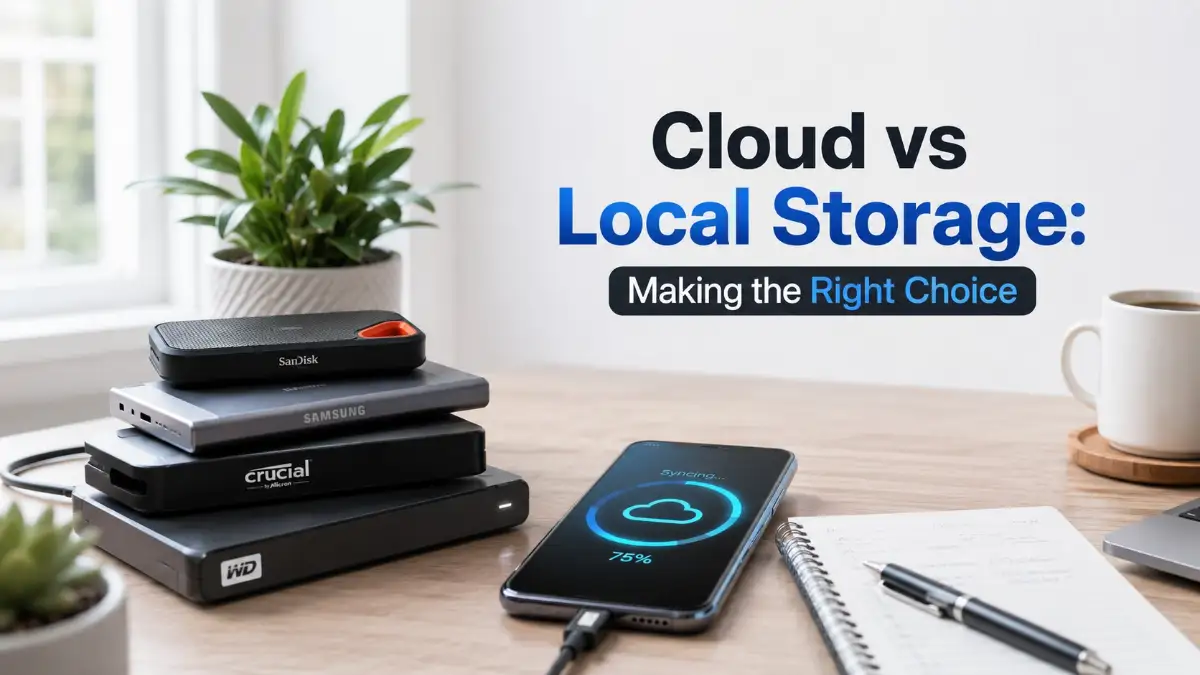
Physical drives are great, but they can still be lost in a house fire or stolen during a break-in. This is why the "1" in the 3-2-1 rule means keeping data off-site.
Cloud storage simply means renting space on a giant, highly secure computer owned by a big company like Google, Apple, or Microsoft. Your files are sent securely over the internet and locked away in their massive data centers.
The best thing about cloud storage is its convenience. You can access your files from anywhere in the world.
If you drop your phone in a lake while on vacation, you will not lose your trip photos. You simply buy a new phone, log into your account, and all your photos instantly appear.
Myth vs Reality: Cloud Storage
Myth: Anyone can easily hack into my cloud account and steal my personal photos.
Reality: Major cloud providers use extreme military-grade encryption. The biggest risk is not a hacker breaking into Google’s servers, but rather you using a weak password like "password123". Use a strong password and turn on two-step verification, and your files will be incredibly safe.
However, not all cloud services are exactly the same. You need to understand the difference between "Cloud Sync" and "Cloud Backup".
Cloud Sync
Services like Google Drive, iCloud, and Dropbox are primarily syncing tools. This means whatever happens on your phone also happens in the cloud.
If you accidentally delete a precious photo on your phone, the syncing service will immediately delete it from the cloud too. Syncing is amazing for accessing files across different devices, but it is not a perfect safety net against human error.
Cloud Backup
True cloud backup services work differently. They take a snapshot of your files and freeze them.
If you accidentally delete a file on your computer, a true backup service will hold onto the deleted file for a month or more. This gives you plenty of time to realize your mistake and get the file back.
Here is a quick pro tip from my own personal mistakes: I used to think keeping my photos on Google Drive meant I was totally safe. One day, I accidentally deleted a favorite photo album on my phone, and because it was just synced, it instantly disappeared from my cloud too! Now, I always make sure I keep one completely offline copy on a physical drive tucked away in my desk drawer.
Setting Up a Frictionless Routine
Now that you know the tools, we have to talk about human nature.
If your plan requires you to sit down every Friday night and manually drag folders onto a hard drive, you will eventually stop doing it. Life gets busy, we get tired, and chores get pushed aside.
The secret to never losing files is removing yourself from the equation completely. You want software to do the heavy lifting for you while you sleep.
For your physical drives, both Windows and Mac have excellent built-in tools. Windows has a feature called "File History," and Mac has "Time Machine."
These free tools are incredibly easy to use. You just plug in your external drive, tell the computer to use it as a backup, and that is it. Whenever the drive is plugged in, the computer will automatically silently copy any new files you have created.
By the way, leaving your computer constantly running hot under heavy loads without proper airflow can damage its internal parts. Ensure you are avoiding those common Hidden Mistakes Shortening Your Laptop’s Life (And How to Fix Them) so your machine stays healthy enough to manage your digital life.
For your smartphone, turn on the automatic backup feature in your settings. Tell it to only upload photos when you are connected to Wi-Fi and the phone is plugged into a charger.
This way, every single night when you go to sleep, your phone quietly secures your memories without using up your mobile data plan. You wake up every morning knowing your digital life is completely protected.
Taking these steps might require an hour of your time this weekend. But that single hour will buy you a lifetime of peace of mind.
You will never again have to feel your stomach drop when a computer makes a weird clicking sound. You will know exactly where your data is, and exactly how safe it is.
Taking Your File Security to the Next Level
You already know the basic rules of saving your data. But true peace of mind comes from building a system that can withstand almost anything.
We are going to look at exactly how professionals keep their client files perfectly safe. These strategies might sound highly technical, but I promise they are incredibly easy to understand.
By adding just a few simple habits to your routine, you will create a digital fortress. Your family photos and tax documents will remain completely safe from hackers, broken hardware, and accidental deletions.
Let us explore these next-level habits that will completely change how you handle your digital life.
The Forgotten Art of Testing Your Safety Net
Buying a high-quality external hard drive is a great first step. But simply copying your files over and putting the drive in a drawer is not enough.
Imagine buying a fire extinguisher and leaving it in the box for a decade. If a fire actually starts, you have no idea if that extinguisher still has pressure.
Data storage works the exact same way. Many people think their automated software is saving their files every night. Then, when their main computer crashes, they open their backup drive only to find it completely empty.
This happens because background software can occasionally freeze or pause without warning you. Sometimes, a simple software update can silently turn off your automatic saving schedule.
To fix this, you must build a habit of doing a test restore. Every few months, plug your portable drive into a completely different computer.
Try to open three random files, like a video, a Word document, and a recent picture. If those files open perfectly, your safety net is working exactly as it should.
If you find an error, you catch it early while your original files are still safe on your main computer. This single five-minute check can save you from a massive heartbreak down the road.
Creating an Air-Gapped Environment
The internet is filled with incredible tools, but it also carries hidden risks. One of the scariest threats to your digital memories is something called ransomware.
Ransomware is a nasty type of virus that silently locks every single file on your computer. Hackers then demand hundreds of dollars to give you the password to unlock your own photos.
If your backup drive is constantly plugged into your infected computer, the virus will lock those files too. It spreads through cables instantly, destroying your safety net in a matter of seconds.
To protect yourself against this, cybersecurity experts strongly recommend using an "air-gapped" approach. According to the data protection guidelines provided by the National Cyber Security Centre (NCSC), keeping at least one physical copy completely disconnected from your network is the safest way to beat ransomware.
An air-gap simply means there is a physical space of air between your backup drive and your computer. You only plug the drive in when you are actively moving files.
As soon as the transfer finishes, you pull the cable out. A virus cannot travel through the air, so your disconnected drive remains completely invisible and safe from online hackers.
Managing Smartphone Uploads Safely
Our smartphones hold the most precious, everyday moments of our lives. Moving all those heavy video files to a cloud server requires a massive amount of energy from your device.
When your phone uploads gigabytes of data over a Wi-Fi connection, the internal processor works overtime. You might notice the back of your device getting quite warm to the touch.
This heavy processing uses a lot of battery power. If you constantly wonder why your device struggles to hold a charge during these massive uploads, you should definitely learn how to Stop the Drain: Why Your Phone Battery Dies Fast and How to Fix It.
Because uploading takes so much power, most people plug their phones into the wall while backing up. This is a smart move to keep the device from shutting down in the middle of a transfer.
However, mixing heavy data processing with rapid charging generates even more internal heat. It is a great time to understand The Truth About Fast Charging: Common Myths, Facts, and Everyday Safety Tips so you do not accidentally harm your device's internal health.
Always try to let your phone cool down on a hard, flat surface like a wooden desk while uploading. Never leave it buried under your pillow while syncing hundreds of videos overnight.
Locking the Digital Door with Basic Encryption
If you drop your house keys on the street, anyone who finds them can walk right into your home. A standard USB flash drive works exactly the same way.
If you leave a portable drive full of personal tax returns at a coffee shop, whoever picks it up can read everything. You do not want strangers having access to your financial history or private family pictures.
This is where encryption comes into play. Encryption acts like a heavy steel vault for your digital files.
It scrambles your data into an unreadable mess of random letters and numbers. The only way to turn the mess back into normal photos is by typing in a secret password.
Both Mac and Windows computers have this vault feature built directly into their operating systems for free. You do not need to buy expensive security software to lock your drives.
When you format a new portable drive, your computer will simply ask if you want to add password protection. Say yes, pick a password you will never forget, and your files become instantly invisible to thieves.
For a deeper understanding of how institutional-level data protection works, you can read the public data storage recommendations published by the University of Michigan IT Department. They explain exactly why encrypting portable media is a non-negotiable habit for personal safety.

Silent Traps That Destroy Digital Memories
Even with the best intentions, people often fall into invisible traps when managing their data. You might think you are doing everything right, only to discover a massive mistake when it is too late.
Let us look at some extremely common pitfalls. Recognizing these traps today will keep your memories perfectly safe tomorrow.
Trap 1: Confusing Syncing with True Safety
This is the single biggest mistake everyday technology users make. They believe that turning on Google Drive or Apple iCloud means their files are permanently protected.
Syncing simply mirrors your actions across all your screens. If your toddler accidentally deletes an entire album of vacation photos on your iPad, the cloud instantly deletes them everywhere else too.
True safety means having a frozen copy of your files that cannot be changed by accidental screen taps. Always keep an offline, physical drive that does not talk to the internet.
Trap 2: Storing Electronics in the Wrong Environment
People often treat external hard drives like old books. They toss them into dusty attics or damp basement boxes and forget about them for years.
Moisture and extreme heat are silent killers of modern electronics. If you leave a drive in a freezing car overnight or in a humid basement, the internal parts will slowly rust and degrade.
Always store your physical drives in a climate-controlled room inside your main living space. A simple desk drawer in your bedroom is the perfect, safe environment for long-term storage.
Trap 3: Forgetting the Ultimate Password
We talked about how amazing encryption is for keeping thieves away. However, encryption is completely unforgiving if you make a mistake.
If you encrypt your family photo drive and forget the password, those photos are gone forever. No computer repair shop in the world can crack modern, high-level encryption for you.
If you decide to lock your drives, write the password down on a physical piece of paper. Keep that paper hidden safely inside a fireproof lockbox or alongside your birth certificate.
Trap 4: Ignoring Warning Signs of Hardware Failure
Hard drives almost never die silently without giving you a warning first. They usually try to tell you they are sick long before they completely crash.
If your computer suddenly starts running incredibly slow when you open a specific folder, pay attention. If you hear a faint clicking or buzzing noise coming from your portable drive, that is a massive red flag.
Do not ignore these signs and hope they go away. The exact moment you hear a weird noise, buy a new drive and copy your data immediately.
Your Personal Action Plan for Today
Taking control of your digital life does not have to be a stressful, weekend-long chore. You can secure your most precious files by taking tiny, simple steps.
You now possess the exact knowledge required to build an unbreakable safety net. You understand the difference between cloud syncing and physical storage, and you know how to avoid the most common traps.
Knowledge is incredibly powerful, but only if you take action. I want you to start protecting your memories today, right this very minute.
Tonight's Goal:
Grab your smartphone and check your automatic photo upload settings. Make sure your device is set to save your pictures when connected to Wi-Fi.
This Weekend's Goal:
Order a highly rated, durable external SSD online. When it arrives, plug it into your computer and move your most important tax documents and favorite family videos onto it.
Next Month's Goal:
Set a repeating reminder on your calendar to plug that drive in and update your files. Make it a quiet Sunday morning ritual while you drink your coffee.
Your memories represent the story of your life. Your career documents represent years of hard work.
They deserve to be treated with respect and guarded carefully. Stop leaving your digital life up to chance, and start building your safety net right now.
You will sleep so much better knowing your entire digital world is perfectly secure.
Setting all this up might seem like an annoying chore right now, but I promise the feeling of safety is so worth it. Knowing my personal memories and hard work are totally protected helps me sleep so much better at night. Pick just one simple step to do today—like checking your phone's backup settings—and give yourself that amazing peace of mind!
Disclaimer: The information provided in this article is for educational and informational purposes only. Technology and software change rapidly. Always consult with a professional IT specialist or data recovery expert before making significant changes to your data management systems.
About the Author
Munira Parveen is a dedicated Digital Content Strategist and Lead Researcher with a passion for simplifying complex topics. From navigating personal finance and emerging tech trends to uncovering the best practical lifestyle solutions, she spends her time analyzing data to bring readers highly accurate, actionable, and easy-to-understand guides. Her ultimate goal is to empower everyday people to make smarter, more informed decisions in this fast-paced digital world.