The Frustrating Mystery of the Vanishing Battery Bar
I remember missing a huge job interview once because my phone died right when I needed the GPS for directions. I had charged it to 100% that morning, so I felt totally betrayed when it just gave up on me. It was the most stressful hour of my life, standing on a street corner with nothing but a useless piece of black glass in my hand. I realized then that I had to stop guessing and start learning why my battery was actually failing me.
Have you ever left your house with a full charge, only to find your phone gasping for air by lunchtime? It feels like a punch in the gut. You haven't even used it that much, yet that little green icon has turned a threatening shade of red.
I know that feeling of panic when you are out with friends or stuck in traffic, and your screen goes black. We rely on these glass rectangles for everything—work, family, and safety. When the battery dies, it feels like our connection to the world is cut off.
We often blame the phone company or think our device is getting old. However, the truth is usually hidden deep inside the software. It is a slow, silent drain that happens while the phone sits in your pocket.
You might feel like you are fighting a losing battle against technology. You close your apps, you turn down the brightness, but nothing seems to help. It is exhausting to constantly look for a wall outlet or carry a heavy power bank everywhere.
I want you to know that you are not alone in this struggle. Most people are using their phones with settings that act like a leaking faucet, dripping away power second by second. This guide is here to help you find those leaks and plug them for good.
The Brightness Trap and Your Screen's Hidden Hunger
The biggest energy consumer in your pocket is almost always that beautiful, glowing screen. Modern displays are incredible, but they require a massive amount of juice to stay lit. Many of us keep our brightness levels much higher than we actually need.
If you have your phone set to maximum brightness all day, you are basically asking the battery to commit suicide. Even keeping "Auto-Brightness" on can sometimes be a problem if the sensor is too sensitive. It keeps jumping up and down, which uses more power than a steady, lower setting.
I recommend manually setting your brightness to the lowest comfortable level. If you are indoors, you rarely need more than 30% or 40%. You will be surprised at how quickly your eyes adjust to a slightly dimmer screen.
Another huge factor is the screen timeout setting. How long does your phone stay awake after you stop touching it? If it is set to two or five minutes, that screen is burning power while you aren't even looking at it.
Try changing this to 30 seconds or even 15 seconds. This simple change ensures that your phone goes to sleep the moment you put it down. It stops unnecessary drain during those small gaps throughout your day.
Background Apps: The Silent Vampires of Your Device
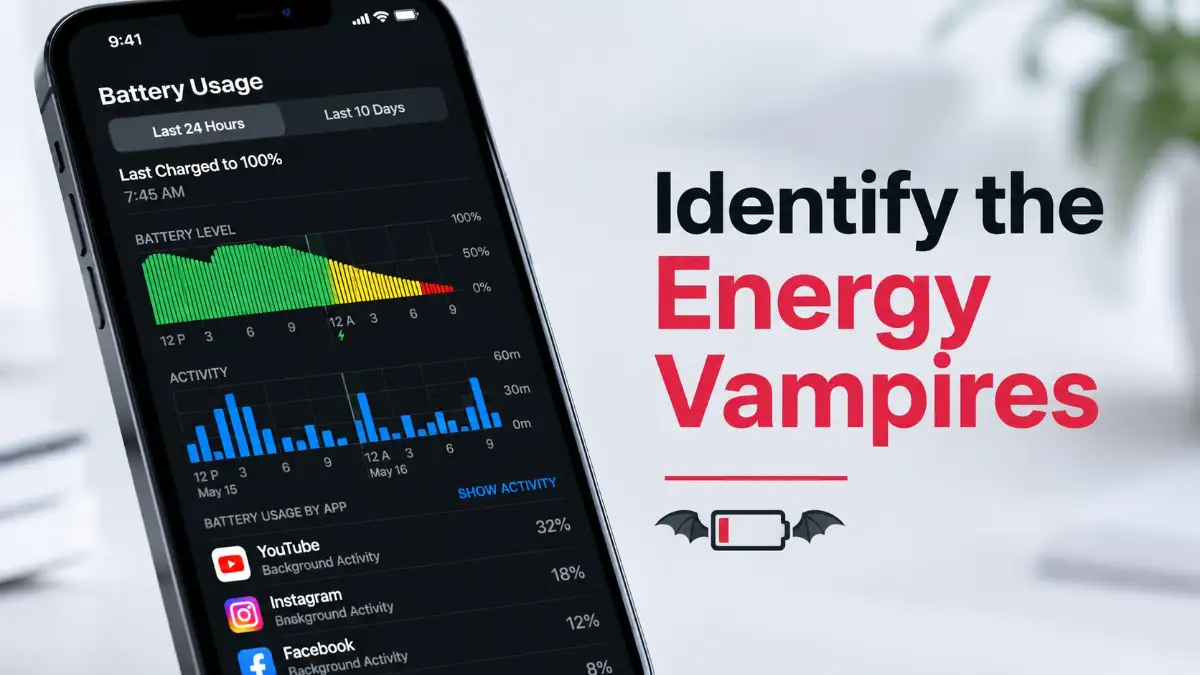
Want to see exactly where these "vampires" are hiding in your settings? Watch this quick video to see the step-by-step way to shut them down and keep reading to learn about more hidden power hogs!
Your phone is a busy place, even when you aren't touching it. Many apps think they are the most important thing in the world. They constantly reach out to the internet to check for updates, news, or your location.
Think of these as "Background Vampires." They sit in the dark, sucking the life out of your battery without you ever seeing them. Social media apps are the worst offenders because they want to send you notifications the millisecond something happens.
You can take control by looking at your Background App Refresh settings. On most phones, you can choose exactly which apps are allowed to work while you aren't using them. Do you really need your shopping app to update every five minutes? Probably not.
I suggest turning off background refresh for everything except your most vital communication tools. By doing this, you stop the constant "chatter" between your phone and distant servers. This keeps your processor calm and your battery cool.
While you are managing your apps, you might also find that From Slow to Smooth: Practical Fixes That Can Improve Your Computer's Everyday Performance is a great way to think about optimization across all your devices. Just like a computer, a phone needs regular maintenance to stay fast.
The Location Services Leak: GPS is a Power Hog
Every time an app asks "Where are you?", it uses a lot of energy. To find your location, your phone has to talk to satellites and cell towers. This process is one of the most taxing things a smartphone can do.
Many apps ask for your location constantly, even when they don't need it. A weather app might check your location every hour just to give you a local forecast. A map app is fine when you are driving, but it doesn't need to know where you are while you are sleeping.
Go into your privacy settings and look at Location Services. You will see a list of every app that has access to your GPS. Change these settings to "While Using the App" instead of "Always."
This ensures that the GPS only turns on when you actually open the app. If an app doesn't need to know where you are to function, just turn it off completely. Your battery will thank you for the extra hours of life.
Why Poor Signal is Killing Your Battery Faster Than Gaming
Most people don't realize that their phone signal affects battery life. If you are in an area with a weak signal, your phone has to work ten times harder. It boosts its own radio power to try and stay connected to the nearest tower.
It is like trying to yell to someone who is a mile away versus whispering to someone next to you. If you are in a "dead zone," your phone is constantly screaming into the void. This generates heat and drains the battery at an alarming rate.
If you know you are in an area with terrible service, the best thing to do is turn on Airplane Mode. You can still turn on Wi-Fi if there is a router nearby. This prevents the cellular radio from draining your power while searching for a signal that isn't there.
This is also a common issue for people who travel through tunnels or rural areas. If your phone is struggling to find a signal, it is basically on a treadmill, running as fast as it can but getting nowhere.
Push vs. Fetch: Managing Your Email Energy
How often do you receive emails? If your phone is set to "Push," the server pushes the email to your phone the second it arrives. This keeps a constant connection open between your phone and the mail server.
For most people, "Fetch" is a much better option. This tells your phone to check for new emails every 15 or 30 minutes. It allows the phone's radio to rest in between checks, which saves a significant amount of power.
Unless your job requires you to reply to emails within seconds, you won't notice a difference in your life. However, your battery will notice a huge difference. It is one of those small settings that adds up over a 16-hour day.
The Impact of High Refresh Rates on Modern Displays
Many newer phones come with "120Hz" or "ProMotion" displays. These make scrolling feel incredibly smooth and fast. However, high refresh rates require the screen to update twice as fast as a standard screen.
This extra work requires extra power. If you are having trouble making it through the day, consider switching back to a standard 60Hz refresh rate. Most phones have an "Adaptive" setting that tries to balance this, but a manual cap is always more efficient.
It might not look as "silky," but it can save a decent chunk of battery life. You have to decide if that smooth scrolling is worth losing 10% or 15% of your total daily power.
Vibration and Haptics: The Tiny Motors That Eat Power
Every time your phone vibrates for a notification or a text, a tiny motor inside has to spin. While it seems small, doing this hundreds of times a day uses a surprising amount of energy.
The same goes for Haptic Feedback—that little click you feel when you type on the keyboard. It feels nice, but it is another motor movement for every single letter you hit. If you are a heavy texter, this is a constant drain.
Try turning off vibration for everything except phone calls. Use a quiet ringtone instead. If you can live without the keyboard haptics, turn those off too. It creates a quieter, more peaceful experience and keeps your battery full.
Managing Your Connectivity: Bluetooth and Wi-Fi
We often leave Bluetooth and Wi-Fi on all the time. While modern versions of these technologies are very efficient, they still scan for connections periodically. If you aren't using them, there is no reason to leave them searching.
If you are out and about and don't plan on connecting to a Wi-Fi network, turn it off. This stops your phone from constantly asking every passing router if it can join. The same applies to Bluetooth if you aren't wearing a smartwatch or using headphones.
However, keep in mind that using Wi-Fi is actually much more efficient than using cellular data. If you have the choice between a strong Wi-Fi signal and 5G, always pick the Wi-Fi. It uses much less power to move data over a local wireless network than over long-distance cell signals.
For more tips on keeping your gear in top shape, check out Hidden Mistakes That Can Shorten the Lifespan of Your Laptop Without You Realizing It. Many of the same principles of heat and power management apply to all your tech.
Keep Your Software Updated (But Be Patient)
Software updates often include "under-the-hood" improvements for battery life. Developers are always finding ways to make code run more efficiently. If you are running an old version of your operating system, you might be missing out on these fixes.
On the other hand, a brand-new update can sometimes cause battery drain for the first 24 to 48 hours. This is because the phone has to re-index files and perform background tasks to set up the new system. Don't panic if your battery life drops right after an update.
Wait a couple of days for the system to settle down. Usually, things will return to normal or even improve. Keeping your apps updated in the Play Store or App Store is also helpful, as developers fix bugs that cause apps to "hang" and burn power.
The Role of Dark Mode in Battery Preservation
If your phone has an OLED or AMOLED screen, Dark Mode is a miracle for your battery. On these screens, a black pixel is actually a pixel that is turned completely off. It consumes zero power.
On a standard LCD screen, the backlight is on even if the screen is showing black. But for OLED users, switching to a true black wallpaper and using dark mode in all apps can save a massive amount of energy.
I always suggest using "System-Wide Dark Mode." It is easier on your eyes at night and keeps those pixels from sucking away your charge. It is one of the easiest ways to extend your screen-on time without changing how you use your phone.
Temperature: The Silent Battery Killer
Batteries hate heat. If your phone gets hot, the chemical reactions inside the battery become less efficient. Your phone might even slow itself down to try and cool off, which makes everything feel laggy.
Avoid leaving your phone in a hot car or in direct sunlight. If you notice your phone getting warm while charging, try taking the case off. Some cases trap heat like a blanket, which is terrible for the long-term health of your battery.
Cold weather can also be a problem, causing the battery to report a lower percentage than it actually has. Keeping your phone close to your body heat in winter can help maintain a steady discharge rate.
Summary of the First Steps
We have covered a lot of ground in this first part. By managing your screen brightness, controlling background apps, and limiting location services, you have already done more than 90% of phone users.
These small changes don't require you to stop using your phone. They just require you to be a bit smarter about how the phone uses its resources. In the next part, we will look even deeper into system caches and advanced battery-saving modes.
Stay tuned as we continue to unlock the full potential of your device while keeping that battery bar green for as long as possible.
Moving Beyond Basic Settings: Mastering Your Device's Hidden Power
Now that we have covered the basic settings, it is time to look at the deeper mechanics of your smartphone. Many people think they have fixed their battery issues by just lowering the brightness. However, there are complex systems running inside your phone that require a more advanced approach to truly save power.
One of the most effective things you can do is look at your Account Synchronization frequency. We all have multiple accounts—Gmail, Outlook, social media, and cloud storage. Each of these accounts is constantly asking the server if there is something new to show you.
If you have five different accounts all syncing at the same time, your phone’s processor never gets a chance to rest. It is like a car engine that never turns off, even when you are parked. You can change these settings to sync manually or every hour instead of every few minutes.
I suggest checking your "Users and Accounts" section in your settings. You might find accounts for apps you haven't used in months that are still syncing data in the background. Removing these old links can give your battery a significant boost without changing your daily habits.
The Secret of Battery Health Monitoring
Most people only look at the battery percentage at the top of their screen. But that number doesn't tell the whole story of your battery's physical condition. Over time, the lithium-ion cells inside your phone naturally wear out.
If your phone is a couple of years old, it might say "100%" when you unplug it, but its actual capacity might be only 80% of what it used to be. Understanding this difference is the first step to managing your expectations. Both Android and iPhone now have built-in tools to check Battery Health or "Maximum Capacity."
If you see that your health has dropped significantly, your phone has to work harder to maintain a charge. This is often when people start noticing sudden drops from 20% to 5% in a matter of minutes. Knowing the health of your battery helps you decide if a setting change will help or if you eventually need a battery replacement.
To understand the science behind how these batteries age and why they behave this way, you can look at detailed studies from organizations like Battery University, which provides deep insights into battery chemistry. Their research shows that heat and high voltage are the primary enemies of your phone's lifespan.
App Hibernation and Deep Sleep Features
Modern smartphones have a feature called "App Hibernation" or "Deep Sleep." This is designed to automatically put apps that you don't use into a state where they use zero power. However, sometimes apps find ways to bypass these rules to stay active.
You can manually force certain apps into "Deep Sleep" through your battery settings. This is perfect for apps that you only use once a month, like a airline app or a specific holiday shopping tool. By forcing them to stay asleep, you ensure they aren't waking up your phone's processor in the middle of the night.
I recommend doing an "App Audit" once a month. Scroll through your list of installed apps and ask yourself: "When was the last time I opened this?" If you can't remember, delete it. Every app you remove is one less potential source of battery drain.
Managing your apps properly also prevents your phone from getting cluttered and slow. If you ever feel like your device is struggling beyond just battery issues, you might find some useful tips in From Slow to Smooth: Practical Fixes That Can Improve Your Computer's Everyday Performance, as many optimization techniques are similar across different types of technology.
The 20-80 Rule: The Gold Standard for Longevity
For years, I made the mistake of leaving my phone plugged in all night, every single night, thinking I was being prepared. I eventually realized I was basically "overcooking" my battery, which is why it stopped holding a charge after only a year. Now, I use a simple timer to stop the charge at 80%, and the difference in my phone’s long-term health has been a total game-changer for me.
There is a big myth that you should charge your phone to 100% and let it die to 0% every day. This was true for old battery types, but for modern smartphones, this is actually harmful. Charging to the extremes puts a lot of stress on the battery cells.
The "Sweet Spot" for a smartphone battery is between 20% and 80%. Keeping your battery in this range as much as possible can double the lifespan of the battery. Many new phones even have a setting to "Limit Charge to 80%" to help you with this.
I know it feels strange to unplug your phone when it isn't "full." But that last 20% of charging (from 80 to 100) generates the most heat and causes the most chemical wear. If you plan to keep your phone for several years, this is the most important habit to start today.
Speaking of charging habits, there is a lot of confusion about how fast we should be filling up our batteries. To clear up some of these common misunderstandings, you should read The Truth About Fast Charging: Common Myths, Facts, and Everyday Safety Tips. It explains how to use modern chargers without hurting your device.
The Dangerous Habits That Are Quietly Killing Your Device
It is easy to fall into bad habits that seem harmless but actually destroy your battery's efficiency over time. One of the most common mistakes is using your phone while it is fast-charging. This creates a "double heat" effect—heat from the screen and processor, plus heat from the battery charging.
Heat is the absolute number one killer of electronics. If you feel your phone getting hot in your hand, stop what you are doing. Let it cool down before you continue using it. Continuous exposure to high heat can lead to "battery swelling," which can physically damage your screen or internal components.
Another mistake is using cheap, uncertified charging cables. I know it is tempting to buy the $2 cable at the gas station, but these often lack the necessary chips to regulate power flow. A sudden spike in electricity can fry your phone's charging port or the battery itself.
I have seen many people lose their precious photos and data because their phone suddenly died due to a cheap charger. If you ever find yourself in a situation where your device is acting up and you are worried about your files, you should look into The Complete Process of Backing Up Your Photos and Important Files Without Losing Data. Protecting your information is just as important as protecting the hardware.
Stop Manually "Killing" Your Apps
This is a habit that is very hard to break. Many people constantly swipe away their apps in the "recent apps" menu, thinking it saves battery. On modern iPhones and Androids, this actually does the opposite.
The operating system is very good at "freezing" apps that aren't in use. When you swipe an app away, you remove it from the phone's RAM. When you open that app again, the phone has to load it entirely from scratch. This takes more processing power and more battery than if you had just left it frozen in the background.
Only close an app manually if it is frozen or acting weird. Otherwise, let your phone's software handle the memory management. It was designed to do this efficiently, and your constant interference is likely making your battery life worse.
Don't Ignore Those "Small" System Updates
Sometimes, we see an update notification and click "Remind me later" for weeks. While some updates add new features, many of them are specifically designed to fix battery-draining bugs. A single line of bad code in an app or the system can cause the processor to run at 100% for no reason.
I suggest setting your phone to "Auto-update over Wi-Fi" at night. This ensures that you always have the latest efficiency improvements. Companies like Google often release "Security Patches" that also include minor tweaks to how the phone handles power. You can learn more about how these updates help by checking the official Android System Support pages, which explain the benefits of staying current.
Avoid "Battery Booster" Apps Like the Plague
If you search the App Store or Play Store for "Battery Saver," you will find hundreds of apps promising to double your battery life. Please, do not download these. Most of these apps are actually "adware" that run in the background and use even more battery.
These apps often claim to "clean your RAM," which we already discussed is actually bad for your battery. Your phone already has the best battery-saving tools built into the settings menu. You do not need a third-party app to do what your phone's manufacturer has already perfected.
Trust the settings that come with your device. They are optimized specifically for your hardware. Third-party apps are often generic and can interfere with the natural way your phone manages its energy.
Your Daily Roadmap to a Longer-Lasting Phone
Improving your battery life is not about doing one big thing. It is about making several small, smart choices every day. It starts with awareness. Pay attention to how your phone feels—if it is hot, something is wrong.
Start by auditing your apps and location settings. Then, move on to your charging habits. Try to keep your phone between 20% and 80% charge. Dim your screen just a little bit more than usual. These changes might feel small, but they add up to hours of extra time away from the charger.
I want you to feel confident using your technology. You shouldn't have to live in fear of the "Low Battery" warning. By taking control of these settings, you are making your life easier and your device more reliable.
A New Relationship With Your Smartphone
You have the power to make your smartphone last much longer than it does right now. Most people accept poor battery life as a fact of life, but you now know better. You have the "insider secrets" that can keep your device running smoothly for years to come.
Imagine the peace of mind you will have when you reach the end of a long day and still have 30% battery left. No more rushing for a charger. No more missed calls. No more stress.
Take a few minutes today to go through the settings we discussed. Pick three things to change right now. Maybe it's the screen timeout, the background refresh, or the 80% charging limit. Once you see the results, you will be motivated to do the rest.
Your phone is a tool designed to serve you, not the other way around. By taking care of its battery, you are ensuring that it stays a helpful part of your life for a long time. Go ahead, start optimizing, and enjoy the freedom of a long-lasting charge!
Don't feel like you need to go out and buy a brand-new phone just to get through a normal day. By making these small tweaks, I turned my own dying device back into a reliable tool that I can actually trust again. You have the power to fix this right now—take back control of your battery today and stop living your life around a wall outlet!
Disclaimer: This article is for informational purposes only. While the tips provided are based on general smartphone best practices, individual results may vary depending on the specific model, age, and condition of your device. Always follow your manufacturer's specific safety guidelines when charging and using your smartphone. We are not responsible for any technical issues that may arise from following these general suggestions.
About the Author
Munira Parveen is a dedicated Digital Content Strategist and Lead Researcher with a passion for simplifying complex topics. From navigating personal finance and emerging tech trends to uncovering the best practical lifestyle solutions, she spends her time analyzing data to bring readers highly accurate, actionable, and easy-to-understand guides. Her ultimate goal is to empower everyday people to make smarter, more informed decisions in this fast-paced digital world.