
Key Takeaways
- No Such Thing as Unlimited: Shared hosting plans have hard limits on CPU, RAM, and I/O that you must monitor.
- The "Noisy Neighbor" Effect: Resource limits protect the server, not just your site, preventing one user from crashing the whole machine.
- Small Tweaks, Big Gains: You can significantly lower resource usage by using a CDN, compressing images, and scheduling backups for off-peak hours.
- Audit Your Tools: Frequently delete unused themes and plugins to stay under your inode and memory caps.
The Frustrating Reality of the "503 Service Unavailable" Error
Seeing a "503 Service Unavailable" error on your own website is one of the most stressful moments for any site owner. You aren't being hacked, and your site isn't necessarily broken—you’ve simply hit the invisible ceiling of your shared hosting plan. Let’s look at why these limits exist and exactly how to optimize your site to stop these crashes from happening.
I was sitting at my desk, sipping a cold cup of coffee, watching my real-time visitor count climb higher and higher. A popular social media influencer had just shared one of my articles. I was thrilled.
My heart was racing with excitement as the traffic spiked. But within ten minutes, my joy turned into pure panic.
My screen suddenly went completely white. A bold, ugly message appeared across the top: "503 Service Unavailable."
I refreshed the page again and again. Nothing happened. My readers were locked out. I was losing money, losing trust, and losing my mind.
I immediately contacted my hosting provider's live support. I told them I had purchased their "unlimited" plan. How could my site be down?
The support agent calmly replied that I had exceeded my physical resource limits. I was absolutely confused. How can an "unlimited" plan have limits?
You might be experiencing this exact same nightmare right now.
Maybe your website takes five whole seconds to load. Maybe you randomly get database connection errors when you try to publish a new post. Or maybe your WordPress dashboard feels incredibly slow and heavy.
These issues totally destroy your peace of mind. You spend hours writing great content, but technical barriers block your success. It feels incredibly unfair.
You pay your hosting bills on time every single month. Yet, you are being secretly punished for growing your own audience.

Decoding the Illusion of "Unlimited" Hosting
Unlimited hosting is a marketing term, not a technical reality. Beneath the surface, every shared account operates under strict resource caps enforced by the server. Understanding these "invisible fences" is the first step to ensuring your site stays online during traffic spikes.
But if you try to take the entire tray of chicken home in your bag, the restaurant manager will quickly stop you. Web hosting works the exact same way.
Providers advertise unlimited disk space and unmetered bandwidth to get your attention. It is a brilliant marketing strategy that easily wins customers.
However, they hide strict rules deep inside their Terms of Service agreements. These rules are known as Acceptable Use Policies.
They know that 99% of regular website owners will never read these long legal documents.
In reality, your website shares a single physical server with hundreds, sometimes thousands, of other websites. If one website uses too much power, all the other sites slow down.
To prevent server crashes, hosts place hard limits on specific invisible resources. Let us break down these secret limitations step by step so you can finally take control of your website.
The Silent Traffic Killer: CPU Throttling
The Central Processing Unit (CPU) is the actual brain of your web server.
Every time a visitor clicks a link on your site, the CPU has to think. It grabs your images, reads your text, and puts the page together.
In a shared environment, you are only allowed to use a tiny fraction of the server's total brainpower. This is usually restricted to something like 25% to 100% of a single CPU core.
If your website gets a sudden rush of visitors, your assigned CPU core gets overwhelmed.
When this happens, the hosting company automatically slows down your website. This is called CPU throttling. They put your site in a slow lane to protect the other users on the server.
Your visitors will sit there staring at a loading screen until they finally give up and leave. This leads to massive bounce rates.
According to web performance research published by Mozilla Developer Network on Server Response Times, a slow server response completely ruins the user experience. A throttled CPU is the number one reason your server response time suddenly drops.
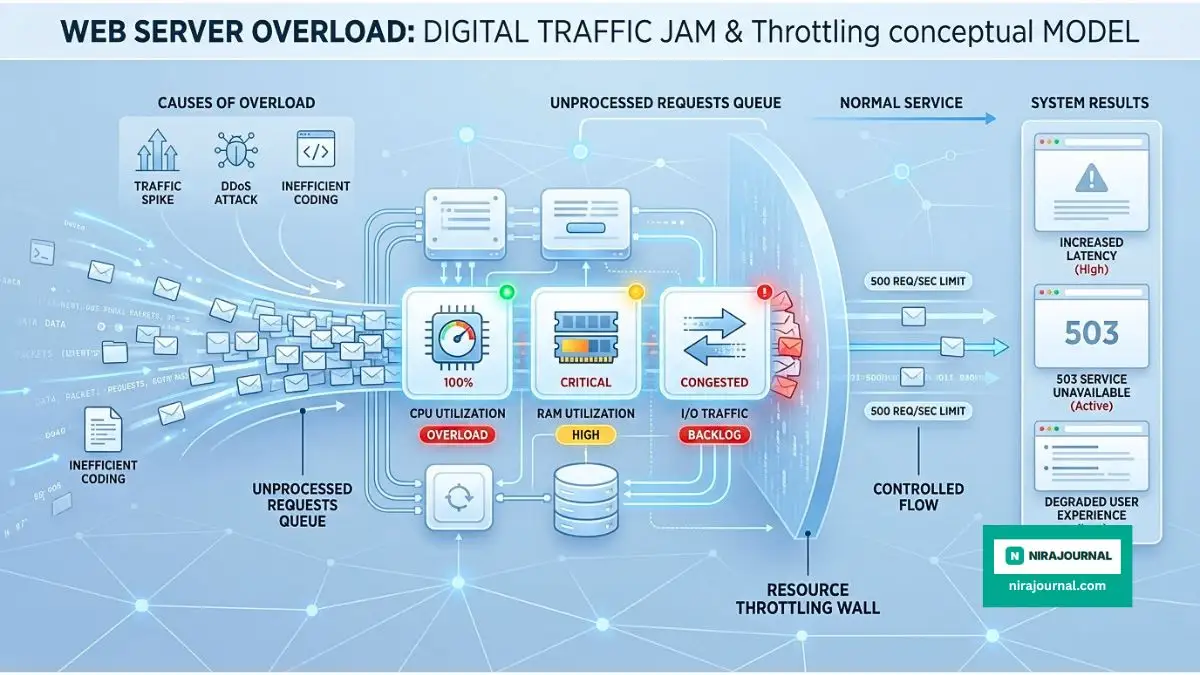
Physical Memory Restrictions (RAM)
Just like your personal laptop, a web server needs Random Access Memory (RAM) to function smoothly.
RAM acts as the short-term memory of your website. It temporarily holds the data your site needs to quickly show a page to a visitor.
Most shared plans quietly limit your physical RAM to just 1GB or 2GB.
If you run a heavy WordPress site with lots of active plugins, you are constantly eating up this memory. E-commerce stores with large product catalogs drain RAM even faster.
When your site hits its exact RAM limit, it simply stops working. The server will actively refuse to serve your web pages.
This is exactly why you might see random "Out of Memory" errors when you try to upload a large image to your media library.
An Expert Realization:
I used to install every free plugin I thought looked cool. I didn't realize that each active plugin was secretly eating away my limited server RAM. Once I deleted the tools I wasn't actively using, my website speed improved dramatically overnight.
The Hidden Entry Processes Trap
Have you ever tried to walk through a single door at the exact same time as twenty other people?
You all get stuck. This is exactly how "Entry Processes" work on your web server.
An entry process is simply a concurrent connection. It represents the number of tasks your website can process at the exact same millisecond.
Most shared hosting plans strictly limit you to 20 or 30 entry processes.
Many people confuse this with total website visitors. But it is different. It only counts the connections happening in the same split second.
If 31 people try to load a page, submit a contact form, or download a file at the exact same millisecond, that 31st person gets blocked.
They will immediately see a 508 Resource Limit Is Reached error. This makes your brand look highly unprofessional to new visitors.
I/O Usage: The Speed Limit You Never Noticed
Input/Output (I/O) usage measures how fast your website can read data from the server's hard drive.
Even if your hosting company uses super-fast NVMe SSD drives, they still limit your personal reading speed. They often cap this at 1 Megabyte to 5 Megabytes per second.
Imagine having a sports car but being forced to drive on a road with a 10 mph speed limit.
Large backup plugins are famous for hitting I/O limits. When your site tries to compress all your files into a zip folder, it reads data very heavily.
If you hit the I/O speed limit, the backup takes forever. Worse, your entire website slows down to a crawl while the backup is running.
This means a regular customer trying to read your blog will have a terrible, sluggish experience.
Here is a great video that perfectly explains how these server resources actually work in the background:
If you want to visually understand how your website competes for server power, you need to watch this simple breakdown right now.
The Infamous Inode Limits
This is the most common hidden trap in the entire hosting industry.
An inode basically represents a single file or a single folder on your server account.
Every single image you upload, every email you receive, and every hidden system file counts as one inode.
Hosting companies love to advertise "Unlimited Disk Space." But then they quietly place a strict limit of 100,000 to 250,000 total inodes on your account.
When you install a basic WordPress theme, it automatically creates thousands of tiny files. If you run a caching plugin, it generates thousands of temporary files every single day.
Once you reach your hard inode limit, disaster strikes. You cannot upload new images. You cannot update your plugins. Sometimes, you cannot even receive new emails.
Your hosting provider will then send you a friendly message suggesting you upgrade to a much more expensive VPS plan.
Restricting Your Database Queries
Every time a page loads on a dynamic website, it asks the database for information.
It asks for the post title, the author name, the publish date, and the comments. These questions are called database queries.
Shared servers place strict limits on how many database connections you can have open at once.
They also restrict how much database power you can use per hour. If a single bad plugin creates a loop that asks the database too many questions, your database gets temporarily blocked.
When this happens, your visitors will see a terrifying message: "Error establishing a database connection."
This happens a lot when you use cheap, poorly coded themes.
Protecting your website from poorly coded themes is essentially the same concept as protecting your personal computer from bad software. In fact, ignoring these small technical threats reminds me a lot of the dangers I discussed in Why Your Free Antivirus Is Actually Putting You at Risk [The Truth]. You always get exactly what you pay for in the tech world.
How Hosting Companies Actually Enforce These Rules
You might be wondering how hosting companies actually track all of these different numbers.
They use a specialized operating system called CloudLinux.
CloudLinux creates a virtual box around your specific hosting account. It acts like an invisible digital fence.
This system constantly monitors your CPU, RAM, Entry Processes, and I/O usage in real time.
If your website tries to reach outside of its digital fence to grab more power, CloudLinux instantly slaps its hand away.
This technology is actually a good thing for the overall health of the server. It prevents one single infected website from bringing down the other 500 websites on the exact same machine.
However, it is a massive roadblock for legitimate business owners trying to grow their online traffic.
If you want to grow, you need accurate data about your current limits. Keeping track of your website's exact performance metrics is incredibly important. Much like understanding human health data—which I explored deeply in 7 Hidden Truths About Sleep Tracking Accuracy (Avoid These Mistakes)—you cannot fix a problem if your tracking numbers are wrong.
Recognizing the Warning Signs
How do you actually know if you are hitting these invisible limits right now?
Your website will usually give you several clear warning signs before it completely crashes.
First, pay close attention to your WordPress admin dashboard. If saving a simple draft takes more than ten seconds, your database is likely struggling.
Second, watch out for random timeout errors. If you try to run a broken link checker plugin and the page just spins forever, you are definitely hitting your PHP memory limits.
Third, check your automated backups. If your daily backups are suddenly failing to complete, your I/O speed or inode limit is probably completely exhausted.
Myth vs Reality: Shared Hosting Facts
To make things perfectly clear, let us look at a simple comparison of what hosting companies say versus what they actually mean.
When you look at this table, the reality becomes completely obvious.
You are sharing a very small slice of a digital pie. The more websites you add to your unlimited plan, the smaller the slice of pie each website gets.
This is exactly why hosting multiple heavy websites on a single shared plan is a recipe for complete disaster.
Quick Diagnostic Checklist:
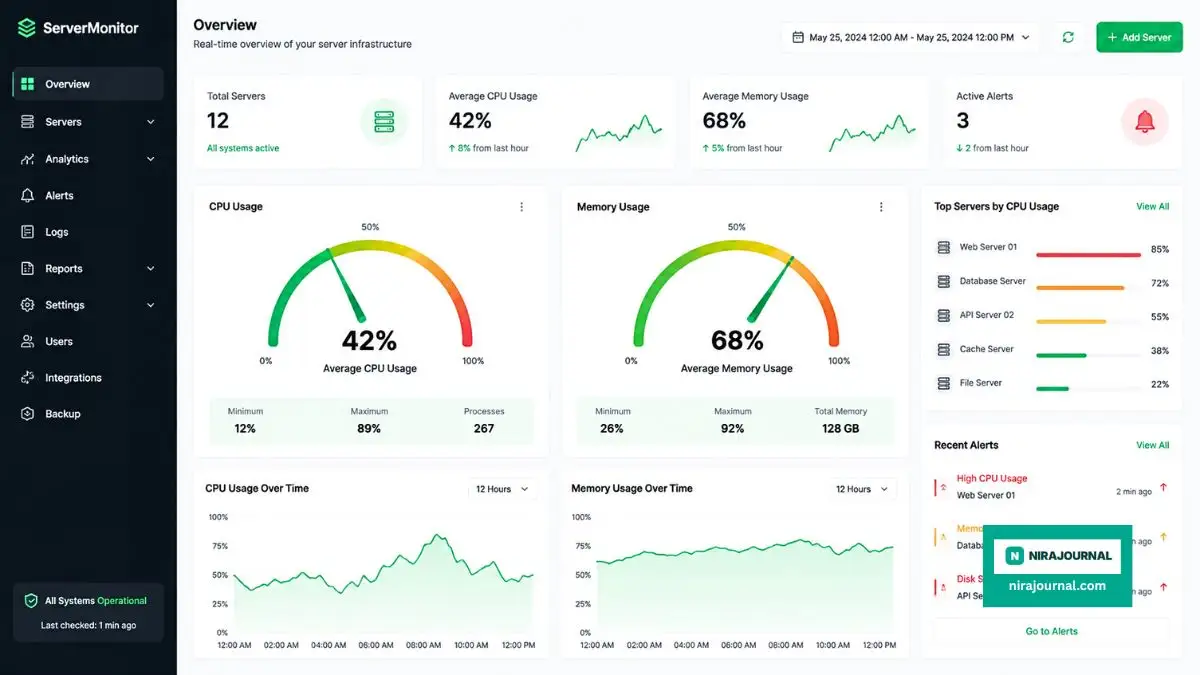
- Check Stats: Does your cPanel have a "Resource Usage" or "Metrics" icon? Check it during your busiest hour.
- Log Check: Look for error_log in your file manager; it often points directly to the plugin causing the spike.
- Ping Test: Use tools like PageSpeed Insights to see if your server response time (TTFB) is consistently over 1 second.
Taking Action Today
Now that you fully understand the hidden digital cages restricting your website, you can finally take proper action.
You do not necessarily have to spend hundreds of dollars on a dedicated server right now.
There are plenty of simple, practical ways to reduce your server resource usage from the inside.
By cleaning up your database, optimizing your images, and removing heavy background tasks, you can easily stay within your shared hosting limits for a very long time.
Understanding your limits is the very first step toward having a blazing fast, highly profitable website.
In the next sections, we will explore the exact step-by-step methods you can use today to drastically lower your CPU and RAM usage, ensuring your website never goes down during a traffic spike again.
Master-Level Strategies to Outsmart Your Server Restrictions
You do not need to be a professional software engineer to fix your slow website.
Most people panic when they see warning messages about CPU limits or memory usage. They immediately pull out their credit cards and upgrade to a much more expensive server plan.
But you really do not have to do that right away. You can easily optimize your current setup to use a fraction of the power it uses right now.
Think of your shared hosting account like a small bucket of water. If you try to pour a massive fire hose into it, the water will instantly overflow.
The secret to success is managing the flow of water before it ever reaches your bucket. Let us look at exactly how you can do this today.
Shift the Heavy Lifting to a CDN
A Content Delivery Network (CDN) is the greatest free tool you will ever use for your website.
When a visitor types your domain name into their browser, your server has to send them every single image, script, and font file. This requires massive amounts of physical memory and entry processes.
A CDN completely changes this process. It takes all of your heavy static files and saves copies of them on hundreds of different servers around the globe.
When someone visits your site, the CDN serves the images from a location right next to their city. Your actual origin server does almost zero work.
According to the web performance guidelines published by web.dev, a properly configured CDN can reduce your origin server load by more than sixty percent. This means you instantly get over half of your CPU power back.
The Remote Backup Rule
One of the biggest drains on your I/O usage is running heavy backup plugins.
Many website owners set up daily backups that save massive zip files directly onto their own server space. This is a terrible idea for two different reasons.
First, these zip files quickly eat up your hidden inode limits. Second, if your server actually crashes permanently, you lose both your website and your backups at the exact same time.
You should always push your backups to a secure remote location.
Tools like Google Drive, Dropbox, or Amazon S3 are perfect for this. When you send the files away, your server stays incredibly light and fast.
Lock Down Your Login Pages
You might be surprised to learn that real human visitors are not the ones crashing your website.
Malicious bots and automated hacking scripts constantly scan the internet for vulnerable websites. They often attack your default login pages thousands of times per hour.
Every single time a bot guesses a random password, it uses a massive chunk of your database memory and CPU power.
Leaving your admin login page completely exposed is basically like leaving your front door wide open in a bad neighborhood. It directly reminds me of the hidden vulnerabilities I exposed in The Secret Danger of Smart Door Locks (Avoid These Mistakes), where convenience actually invites very dangerous, unwanted guests. Hackers will use automated bots to drain your resources without you ever noticing.
You can instantly stop this by changing your default login URL.
Use a simple security tool to move your login page from the standard address to something completely unique. This completely blocks automated bots and saves your server power instantly.
Clean Your Database Transients Weekly
Your WordPress database is essentially a giant digital filing cabinet.
Every time you change a theme setting or install a new tool, it leaves behind temporary files called transients. Over time, these files pile up and create a massive mess inside your database.
When your server needs to find a specific piece of information, it has to dig through thousands of useless transient files.
This causes your database queries to take way too long, eventually leading to timeout errors.
You should install an optimization tool that automatically sweeps your database every single weekend. Deleting old post revisions and expired transients will make your admin dashboard feel incredibly snappy.

Dangerous Habits That Will Instantly Crash Your Website
Knowing what to do is important, but knowing what to avoid is actually much more valuable.
Many innocent website owners accidentally trigger their own server suspensions. They do this by practicing terrible server management habits.
These small mistakes might seem completely harmless at first glance. However, they quietly pile up in the background until your entire site completely breaks down.
Let us carefully examine the biggest traps you need to avoid to keep your website completely online.
Hoarding Inactive Themes and Plugins
We all love testing out new features on our websites.
You might install five different gallery plugins just to see which one looks the prettiest. But when you are done testing, you probably just leave the other four deactivated sitting in your dashboard.
Even when a tool is officially turned off, its core files still exist on your server drive.
These dormant files silently eat up your strict inode limits. Furthermore, outdated plugins are the number one entry point for malware infections.
If you are not actively using a theme or an extension today, completely delete it from your system.
Thinking you can just store endless files forever because your plan says 'unlimited' is a very expensive assumption. It is very similar to the energy management blunders I highlighted in my Ultimate Guide to Electric Car Ownership: 3 Mistakes That Will Cost You Thousands (Save Time & Money). If you do not optimize your daily usage, your power will run completely dry exactly when you need it most.
Ignoring Your PHP Version Updates
PHP is the core programming language that runs your entire dynamic website.
The developers who maintain this language are constantly releasing new, faster versions. However, most hosting companies do not update your PHP version automatically because they are afraid of breaking your layout.
Running an outdated version of PHP is a massive performance killer.
Older versions require nearly double the physical memory to execute the exact same tasks. They also take much longer to communicate with your database.
You should always log into your control panel and check your current PHP settings.
According to the official documentation provided by PHP.net, upgrading to the latest stable release drastically improves execution speed while consuming far less server memory. It is literally a free speed boost that takes exactly two clicks to activate.
Uploading Giant Raw Image Files
Modern smartphones take incredibly beautiful, high-resolution photographs.
If you take a picture of your office and immediately upload it to your blog, you are making a massive mistake. A single raw photograph can easily weigh five or six megabytes.
When ten people try to load that single image at the same time, your server has to push sixty megabytes of data through a very tiny bandwidth pipe.
Your I/O limits will instantly max out, and your server will completely freeze.
You must always compress your images before you upload them. Use a free tool to convert your heavy pictures into the modern WebP format.
A compressed WebP image usually weighs less than fifty kilobytes, which your server can deliver almost instantly without breaking a sweat.
Leaving the Heartbeat API Unchecked
WordPress has a built-in feature called the Heartbeat API.
This feature allows your website to autosave your blog posts while you are typing. It is also responsible for showing you real-time sales notifications if you run a store.
To do this, it sends a continuous pulse to your server every fifteen seconds.
If you have three different browser tabs open to your admin dashboard, that is an enormous amount of continuous requests. This constant pulsing quickly eats up your maximum entry processes.
You can easily fix this by installing a control plugin that slows down the Heartbeat API.
Changing the pulse from fifteen seconds to sixty seconds will completely save your server from unnecessary exhaustion.
Running Heavy Automated Tasks During Rush Hour
Every website needs to run background maintenance tasks, known as Cron jobs.
These tasks check for updates, publish scheduled posts, and send out email newsletters.
If you schedule a massive database backup at noon on a Tuesday, you are asking for trouble. This is usually when your website receives the highest amount of human traffic.
Your server will literally tear itself apart trying to serve your visitors and zip your files simultaneously.
Always schedule your heavy automated tasks for the middle of the night. Check your analytics to find out when your traffic is at its absolute lowest point.
Running maintenance at 3:00 AM ensures your human visitors never experience a sluggish web page.
I once spent two days debugging a site crash only to realize a "real-time" backup plugin was triggering an I/O spike every time a user simply refreshed their cart. Moving backups to a remote cloud storage saved my server performance instantly.
Your Immediate Action Plan for a Faster Website
Real-Life Scenario:
Imagine you are hosting a large dinner party in a very small kitchen. If you try to cook the main course, bake a cake, and wash the dishes all at the exact same time, you will burn everything.
Your shared hosting account is exactly like that small kitchen.
You have to be incredibly smart about how you schedule your tasks and manage your available space.
Instead of getting frustrated by these hidden restrictions, you can use them as a guide to build a much cleaner, leaner website.
Here is a quick daily checklist you can use to stay perfectly under your limits:
- Do serve every single image and video through a global CDN.
- Do not store heavy backup archives on your local file manager.
- Do convert all of your media files to the lightweight WebP format.
- Do not leave twenty inactive themes sitting in your appearance folder.
- Do change your login URL to block automated security bots.
By simply following these basic principles, you will easily outsmart the hosting companies. You will get premium-level speed out of a basic budget plan.
A Personal Note Before You Go:
I spent way too much time feeling incredibly stressed out every time my website went offline. Once I finally understood these hidden technical boundaries, everything changed for the better. I took complete control of my server health, and my traffic has grown flawlessly ever since. You have the exact same power to fix these issues right now, so open up your dashboard and start optimizing today!
Common Questions About Shared Server Limits
What happens if I exceed my physical hosting limits?
When you hit your limit, your hosting provider will temporarily block access to your website. Visitors will usually see a 503 Service Unavailable or 508 Resource Limit Reached error screen. Your site will automatically come back online once the heavy traffic spike passes or the background task finishes.
Can I just buy more inodes without upgrading my plan?
Most basic hosting companies do not sell inodes as an individual add-on feature. If you permanently hit your file limit, they will force you to upgrade to an expensive VPS or dedicated plan. Your best option is to aggressively delete useless files and old backups first.
Is using Cloudflare actually enough to stop CPU throttling?
Cloudflare is absolutely fantastic for reducing bandwidth and blocking bad bots. However, it cannot fix internal problems like a poorly coded theme or a bloated database. You must combine a CDN with proper internal site optimization for the best results.
How do I find out what is specifically draining my RAM?
You can usually find a 'Resource Usage' or 'Metrics' icon inside your web hosting control panel. This area provides real-time graphs showing exactly which plugins or scripts are currently eating up your memory. Checking these charts during a traffic spike will reveal the exact culprit.
Will deleting inactive plugins actually make my site faster?
Yes, deleting unused plugins makes a massive difference in performance. Even when turned off, they take up valuable disk space and can leave bloated tables inside your database. Removing them completely lightens the load on your entire server environment.
Disclaimer: This article is for informational and educational purposes only. Server configurations, hosting policies, and technical metrics vary greatly between different service providers. Always consult your specific hosting company's Terms of Service and Acceptable Use Policy before making major changes to your server environment. We do not endorse any specific malicious activity and encourage proper digital security practices.
About the Author
Munira Parveen is a dedicated Digital Content Strategist and Lead Researcher with a passion for simplifying complex topics. From navigating personal finance and emerging tech trends to uncovering the best practical lifestyle solutions, she spends her time analyzing data to bring readers highly accurate, actionable, and easy-to-understand guides. Her ultimate goal is to empower everyday people to make smarter, more informed decisions in this fast-paced digital world.

![Why Your Free Antivirus Is Actually Putting You at Risk [The Truth]](https://nirajournal.com/storage/uploads/blogs/1787310430_why-your-free-antivirus-is-actually-putting-you-at-risk-the-truth.webp)