The Heart-Sinking Moment When Your Site Vanishes
I remember the first time I moved my blog to a new hosting provider. I was so excited to see the faster loading speeds and the new layout I had worked on for weeks. I logged into my domain registrar, swapped the old nameservers for the new ones, and clicked save. I hit refresh on my browser, expecting magic, but instead, I saw a blank white screen.
My heart sank instantly because I thought I had deleted my entire website. I spent the next four hours frantically checking my files and emailing support, feeling like a total failure. It felt like my digital home had simply vanished into thin air without leaving a note. My hands were shaking as I tried to figure out what went wrong with those simple lines of text.
I kept asking myself if I had made a permanent mistake. I had followed every tutorial I could find, yet my screen remained stubbornly empty. This feeling of being "lost" in the technical world is something I will never forget. It’s a mix of fear, anger, and deep regret for even trying to make a change.
The Mental Toll of a "Broken" Online Presence
When your website doesn't show up, it’s not just a technical glitch; it feels like a personal crisis. You have spent hours, maybe months, building your brand, writing content, and connecting with your audience. Suddenly, that connection is cut, and you are left wondering if you have lost everything you worked for.
The mental toll is real because every minute your site is down feels like a missed opportunity. You worry about your Google rankings dropping or your regular readers thinking you have gone out of business. It is a lonely feeling to stare at a "Server Not Found" message while the rest of the internet seems to be moving perfectly fine.
The silence from your server can be deafening, especially when you are expecting a big launch or a surge in traffic. You find yourself checking your site every five minutes on your phone, then on your laptop, then asking a friend to check it. This constant loop of anxiety can ruin your entire day and make you feel completely helpless against the "tech gods."
Many people feel a sense of panic because the internet is supposed to be instant, right? When we change a setting, we expect the result to happen in a heartbeat. When it doesn't, we start doubting our host, our domain provider, and even our own skills. This struggle is something almost every website owner faces at least once.
Understanding Why the Internet "Forgets" Your Site
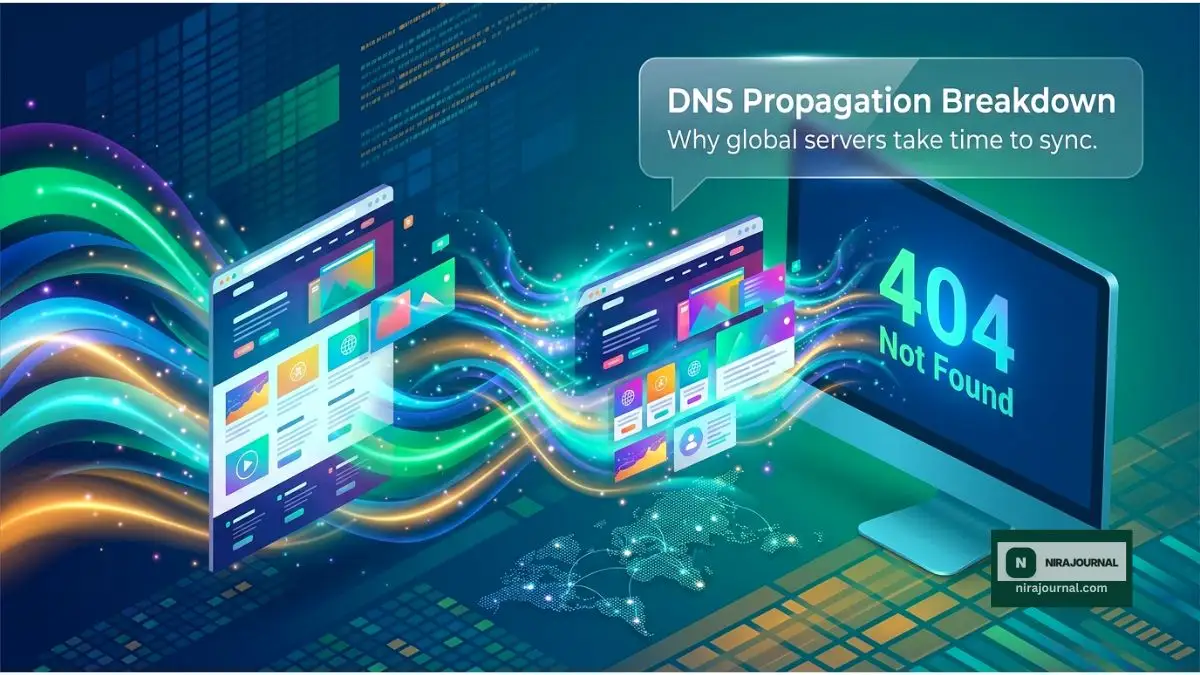
The reason your site isn't showing up usually comes down to how the global internet stores information. Think of the Domain Name System (DNS) as a giant phonebook for the entire world. When you change your nameservers, you are basically telling the world that your "phone number" has changed.
However, not every local "phonebook" gets updated at the exact same time. This is what we call propagation, and it is the biggest reason for your current headache. According to the official DNS resource documentation from ICANN, these updates must travel through multiple layers of servers.
How Global Propagation Really Works
When you hit that save button, your domain registrar sends the new nameserver info to the root servers. From there, the info has to trickle down to thousands of Internet Service Providers (ISPs) across the globe. Some ISPs in New York might see the change in ten minutes, while an ISP in London might take twelve hours.
This creates a "ghost" version of your site for some people while others see the real thing. It is like a global game of telephone where the message is slowly moving from one person to the next. Until the message reaches everyone, your site will appear to be missing or "down" in certain regions of the world.
Your Browser’s Secret (and Annoying) Memory Bank
Sometimes, the problem isn't the internet at all; it is actually your own computer. Browsers like Chrome or Firefox love to save time by remembering where a website used to be. This is called "caching," and it is designed to make your browsing experience faster.
When you update your nameservers, your browser might still be looking at its old map. It tries to find your site at the old hosting location, finds nothing, and shows you an error. Even if the rest of the world can see your new site, you might still be stuck looking at a broken link.
The Complete Process of Mapping Your Custom Domain Name to a New Web Server
The Invisible Barrier Called TTL (Time to Live)
Every DNS record has a specific setting called TTL, which stands for "Time to Live." This isn't about how long your website lives, but how long a server should hold onto your DNS info before checking for updates. If your old TTL was set to 24 hours, servers might wait a full day before even looking for your new nameservers.
This is a common trap that catches many beginners off guard. If you don't lower your TTL before making a change, you are essentially telling the internet to ignore any updates for a while. It is a technical safeguard that, in this case, acts as a temporary wall between you and your live website.
Testing Your Domain with Global Tools
Before you start changing more settings, you need to see what the rest of the world sees. There are tools designed to ping servers in different countries to see which nameservers they are currently reporting. You can use the Google Dig tool to verify what the global DNS records actually say.
Using a DNS checker is like having a bird's-eye view of the entire internet. If you see green checkmarks in some countries and red "X" marks in others, you know propagation is simply in progress. If every single location shows your old nameservers, then there might be a mistake in how you saved your settings at your registrar.
The Fast Way to Force a Local Refresh
If your friends can see your site but you can't, it is time to clear your local DNS cache. Your operating system has its own internal memory of website addresses that needs to be wiped clean. This is a very simple process that doesn't affect your files but forces your computer to ask the internet for a fresh map.
Doing this is often the "magic fix" that makes a website reappear instantly on your screen. It is one of the most satisfying moments—seeing your site pop back into existence after a single command. It proves that the site wasn't actually gone; your computer was just looking in the wrong direction.
Pro Tip: I once spent six hours troubleshooting a "down" site only to realize I was using a VPN. The VPN was connected to a server in a country where propagation hadn't finished yet. Always turn off your VPN when checking your site after a DNS change to get an accurate view of your local connection.
Nameservers vs. A Records: Avoiding the Confusion
Many people get confused between updating an "A" record and changing nameservers. An A record points your domain to a specific IP address, while nameservers tell the domain which server will handle all its records. If you changed the nameservers, any A records you set at your old host are now completely ignored.
This is a major reason why sites go dark. If your new nameservers don't have the correct A records configured inside them, the domain won't know which IP address to point to. It’s like moving to a new house but forgetting to tell the movers which room the furniture goes in. You have the house, but the rooms are still empty.
Watch this video to see exactly how DNS propagation works across different continents and how you can track it in real-time!
Why Mobile Data is Often Faster than Home Wi-Fi
Have you ever noticed that your phone on 4G/5G can see your site, but your laptop on Wi-Fi cannot? This is because your mobile carrier uses a completely different set of DNS servers than your home internet provider. Mobile networks often refresh their records more frequently to keep up with fast-moving data.
This is actually a great way to test if your nameserver change was successful. If your phone sees the new site, it means the update is working and is currently traveling through the internet's pipes. It is a sign of hope that tells you to stop worrying and just wait for your home Wi-Fi to catch up.
Typos and Case Sensitivity: Small Errors, Big Problems
One tiny typo can break your entire digital presence. Nameservers usually come in pairs, like ns1.bluehost.com and ns2.bluehost.com. If you accidentally swap a letter or add an extra space, the domain registrar won't be able to find the hosting server.
Another common error is having "transfer locks" or "client hold" statuses on your domain. These security features can sometimes prevent new nameserver settings from being published. You must ensure your domain is "Active" and not stuck in a pending verification state, which often happens with new domain registrations.
A Beginner’s Roadmap to Implementing SSL Certificates for Enhanced Site Encryption
The Myth of the Instant Internet
We live in a world where we expect things to happen the moment we click a button. However, the internet is a decentralized network of millions of computers. There is no "master switch" that updates every single server at once. Accepting this reality is the first step toward reducing your stress.
Some premium DNS providers offer "Instant DNS," but even those are limited by the cache settings of local ISPs. No matter how much you pay, you cannot control how a small internet provider in a remote part of the world chooses to update its records. Patience is the only true tool you have during the first few hours.
When the Hosting Account Itself Isn't Ready
Sometimes the nameservers are perfect, but the hosting account isn't ready. If your host hasn't "accepted" the domain into their system, the nameservers will point to a server that doesn't know what to do. This often results in a generic hosting landing page or a directory listing.
Always double-check that your domain is listed as a "Primary Domain" or an "Add-on Domain" in your hosting control panel. Without this internal connection, all the DNS updates in the world won't make your website show up correctly. It’s the final piece of the puzzle that many people overlook in their rush to get back online.
The Real Meaning of "Server Not Found"
Seeing a "Server Not Found" error is different from seeing a "404 Page." A "Server Not Found" error means the internet couldn't even find the computer where your website lives. This is almost always a DNS issue. On the other hand, a 404 error means the server was found, but the specific file or page was missing.
Knowing the difference between these errors can save you hours of unnecessary work. If you see "Server Not Found," don't bother checking your WordPress settings or your plugins. Focus entirely on your nameservers and your domain registrar settings. That is where the problem is hiding.
Checking for Domain Expiration
It might sound silly, but sometimes a website goes down during a nameserver update because the domain actually expired at the same time. If your domain isn't renewed, your registrar will stop pointing it to any nameservers at all. Always check your domain's expiration date to ensure it is still active.
A domain in its "grace period" might still show up for a while, but once it hits the "redemption period," it will vanish. This coincidence happens more often than you think, especially when people are busy moving hosts and forget to check their basic domain status.
How to Properly Wait Without Going Crazy
Waiting for propagation is like watching paint dry. The best thing you can do is walk away from your computer for a few hours. Checking every two minutes will only increase your stress levels and make the time feel longer. Go for a walk, grab a coffee, or work on your content offline.
When you come back, try opening your site in "Incognito Mode" or use a completely different browser. This bypasses many of the local cache issues we discussed earlier. Usually, by the time you have finished a good meal, the internet has done its job and your site will be back where it belongs.
Final Checklist Before You Panic
Before you call tech support, run through a quick mental checklist. Did you copy the nameservers exactly? Did you click the "Save" or "Update" button at the registrar? Have you cleared your browser cache and tried your phone's data? If the answer is yes to all, then you are simply in the propagation window.
The internet is a complex web of connections, and your website is just one small part of it. Give the system time to sync up and share your new address. In the vast majority of cases, your website isn't gone; it’s just in the middle of its journey to a new home.
Navigating the Post-Update Maze: Pro Strategies
Changing your nameservers can feel like you are throwing a message in a bottle into a vast ocean. You hope it reaches the right shore, but the waiting can be painful. To make this process smoother, there are a few expert-level tricks that I have learned over the years. These methods don't just help with the current update; they help you manage your entire online presence like a seasoned professional.
One of the best things you can do before even touching your nameservers is to lower your "Time to Live" (TTL) settings. Many people ignore this, but it is a huge mistake. If your TTL is set to a high value, like 86,400 seconds (24 hours), every server on the internet will wait a full day before checking for your new site. By lowering this to 300 seconds (5 minutes) a few days before your move, you tell the internet to check for updates much more frequently. This simple step can turn a two-day wait into a ten-minute transition.
Another secret is using a "Local Hosts File" edit on your own computer. This is a bit technical but very powerful. It allows you to tell your computer exactly which IP address your domain should point to, bypassing the entire global DNS system. This way, you can see and work on your new website while the rest of the world is still looking at the old one. It is like having a private tunnel to your new server. It gives you the peace of mind to see that your files are safe and your site is ready for the public.
It is also smart to keep your old hosting account active for at least a week after you make the switch. Many people cancel their old plan the moment they click "Save" on the nameservers. This is a recipe for disaster. Because propagation happens at different speeds, some visitors will still be directed to your old server for several hours or even days. If you cancel the old plan too soon, those visitors will see a broken page. Keeping both active ensures that no matter which "map" a visitor's ISP is using, they will still find your content.
Understanding the Strategic Differences Between Popular Domain Extensions and Their Effect on Brand Identity can also help you realize how different registries handle these updates. Some extensions, like .com or .net, tend to propagate much faster because their root servers are highly optimized. Others might take a bit longer. Knowing the personality of your domain extension helps you set realistic expectations for how long your site might be offline.
The Power of Flush DNS and Alternative Browsers
When you are stuck in the waiting phase, your local machine is often your biggest enemy. It holds onto old data to save time. This is where the ipconfig /flushdns command comes in. It is a simple line you type into your computer's command prompt that wipes its memory of website addresses. This forces it to go back out to the internet and ask for the latest information.
I often suggest using a browser you never use, like Opera or even a fresh install of Brave, during this time. These browsers won't have any cached data related to your site. It provides a much cleaner view of what a brand-new visitor would see. If the site works there but not in your main browser, you know the issue is purely local. It saves you from worrying about server errors that don't exist.
Another pro tip is to use a web-based proxy or a "screenshot" tool like PageSpeed Insights. These tools access your site from their own servers. If they can see your new site, it is a 100% guarantee that your nameserver change was successful. It is just a matter of waiting for your local internet service provider to catch up with the rest of the world.
Maintaining Long-Term Stability for Your Website
Once your site is finally live, the work doesn't stop there. You want to make sure your DNS stays healthy and fast. Using a secondary DNS provider can add an extra layer of protection. This means that if one provider has an outage, your site stays online because another set of servers is still broadcasting your location. It is like having a backup generator for your digital address.
You should also regularly audit your DNS records. Over time, we often add records for email services, verification codes, or subdomains. These can clutter your DNS zone and lead to slow response times. A clean, well-managed DNS zone ensures that when a user types your URL, they get to your site as quickly as possible. Speed is a factor in how both users and search engines perceive your brand.
Many owners forget to check their email settings after a move. DNS handles more than just web traffic; it handles your email too. If you change nameservers but forget to move your MX records, you will stop receiving emails. This can be devastating for a business. Always make a copy of your full DNS zone before you hit that update button.

The Hidden Traps That Keep Your Site Offline
In my experience, the biggest mistakes people make aren't usually technical; they are emotional. When we see our site is down, we start to panic. This panic leads to "Setting Overload." This is when a user keeps changing their nameservers back and forth between the old host and the new host. Every time you do this, you reset the propagation clock.
You are basically confusing the global servers. They might end up ignoring your updates altogether for a while because they see too many conflicting signals. It is better to set the nameservers correctly once and then walk away. The more you tinker with it during the first 24 hours, the longer the whole process will actually take.
Another common pitfall is forgetting about DNSSEC (Domain Name System Security Extensions). If your old registrar had DNSSEC enabled and you move to a host that doesn't support it, your site will simply stop loading. The internet will see the mismatch and think your site has been hijacked. It will block all traffic to protect the users. Always check if DNSSEC is turned on before you start moving things.
Many people also make the mistake of clearing the wrong cache. They might clear their browser history but forget that their router or their ISP also has a memory of the old site. According to the technical guides from the Mozilla Developer Network, caching happens at many different levels of the internet stack. If you only fix one level, you are still going to see the old version of your site.
Typos in the nameservers are the most frequent cause of "permanent" downtime. It sounds simple, but I have seen professionals spend days troubleshooting only to find a single missing letter. These addresses are not case-sensitive, but they must be exact. Even one extra period at the end can break the link. Always copy and paste your nameservers directly from your hosting welcome email.
Lastly, neglecting Essential Server-Side Security Measures to Protect Your Files from Unauthorized Access can lead to your host suspending your account right as you move. If your files are moved to a new server and they contain malware, the new host's firewall might block your IP. This can look like a DNS issue when it is actually a server security issue. Always scan your site before you migrate to ensure a clean start.
The Social Media Ghosting Effect
Did you know that Facebook, Twitter, and Pinterest also cache your DNS info? If you try to share a link to your new site while it is still propagating, these platforms might show an error. This is because their crawlers are still seeing the old server. This can be embarrassing if you have just announced a big move to your followers.
To fix this, you can use tools like the "Facebook Sharing Debugger." It forces Facebook to scrape your site again and update its internal records. This ensures that your social media posts look perfect even if the global DNS is still catching up. It is a small step that makes a huge difference in how professional your launch looks to the world.
The Real Cost of Impatience
I have seen people lose days of work because they couldn't wait a few hours. They started deleting and recreating their hosting accounts, thinking something was broken. This is a very dangerous game to play. When you delete a hosting account, you risk losing your databases and your emails forever. All because the DNS was just taking its natural time to travel around the world.
The emotional stress of these mistakes can be avoided by simply trusting the process. The internet is a massive, complex machine. It is designed to be stable, not necessarily fast when it comes to infrastructure changes. If you follow the steps and verify your work once, the best thing you can do is leave it alone.
Building a Resilient Migration Plan
A successful migration isn't just about moving files. it is about planning for the "dark period" where your site is between servers. If you have an e-commerce store, consider putting up a "Maintenance Mode" sign on the old server. This tells customers that you are moving to a better home and will be back shortly. It is much better than letting them see a broken page.
You should also alert your team or your clients about the move. Tell them that for the next 48 hours, things might look a bit shaky. This transparency builds trust and reduces the number of "Is the site down?" emails you will receive. A little communication goes a long way in managing expectations during a technical transition.
Your Roadmap to a Stress-Free Website Launch
Moving a website is a big step, and seeing it "disappear" for a while is just part of the journey. It is a sign that things are changing and you are growing. By understanding the science of DNS and the reality of propagation, you can stay calm while others are panicking. You now have the tools to verify your site is safe and the knowledge to avoid the traps.
Remember that every major website you visit has gone through this exact same process. It is a rite of passage for every site owner. Once the servers sync up and your new site appears, the feeling of relief will be worth the wait. You are building something great, and this small technical hurdle is just a tiny bump in the road to your success.
I want you to know that you are doing a great job. Technical issues can be scary, but they are also great teachers. I have been exactly where you are, staring at a blank screen and hoping for a miracle. Take a deep breath, trust the work you have done, and give the internet a little time to catch up with your vision. You have got this!
Clearing Up the Confusion: Your DNS Troubles Solved
Why can I see my site on my phone but not on my computer?
This happens because your phone uses mobile data from a different provider than your home Wi-Fi. The mobile provider's servers have likely updated their records faster. Your computer is still looking at the old "cached" information from your home internet provider.
How many times can I change my nameservers in one day?
Technically, you can change them as often as you want, but you really shouldn't. Each change sends a new signal to the global servers, which can lead to long delays and confusion. It is best to set them once and wait at least 24 hours before making any more changes.
What should I do if my site shows a "Suspended" page?
This usually means your nameservers are working, but they are pointing to a server that doesn't recognize your domain. Double-check that you have added the domain to your new hosting control panel. It could also mean your new host hasn't fully activated your account yet.
Will my emails stop working when I change nameservers?
Yes, if your email was hosted with your old provider, it will stop working once the nameservers change. You need to make sure your new DNS records include the correct MX (Mail Exchange) records. According to official documentation from Verisign, the nameservers control all traffic, including your email routing.
How do I know if my nameservers are actually updated?
You can use a global DNS checker tool to see the status. If the tool shows your new nameservers across different countries, then the change is successful. If you still can't see the site, the problem is likely with your local cache or your hosting setup.
Disclaimer: This article is for informational purposes only. While I am an SEO and hosting expert, every server environment is different. Always backup your website files and databases before making any DNS or hosting changes. I am not responsible for any data loss or extended downtime caused by improper configurations. If you are unsure, please consult with your hosting provider's technical support team for personalized assistance.
About the Author
Munira Parveen is a dedicated Digital Content Strategist and Lead Researcher with a passion for simplifying complex topics. From navigating personal finance and emerging tech trends to uncovering the best practical lifestyle solutions, she spends her time analyzing data to bring readers highly accurate, actionable, and easy-to-understand guides. Her ultimate goal is to empower everyday people to make smarter, more informed decisions in this fast-paced digital world.
![The Hidden Vulnerabilities: Essential Server Security Secrets [Step-by-Step]](https://nirajournal.com/storage/uploads/blogs/1785821004_the-hidden-vulnerabilities-essential-server-security-secrets-step-by-step.webp)